Guide
DOM Manipulation for A/B Testing: The Marketer's Guide to Changing Web Pages Safely
Alexandre Suon · 2026-09-27
Most A/B tests on websites work by changing the page in the visitor's browser: a script finds a headline, a button or a block and rewrites it. This guide explains, in plain English, how that works, what you can safely change yourself in a visual editor, why changes break, how to protect page speed and accessibility, how to check a test before launch, and where AI editors help.
Executive summary
- Every visual-editor test is a list of "find this element, change it like this" instructions. The browser turns the page's HTML into a tree of objects called the DOM (Document Object Model), and your testing tool's script edits that tree after the page starts to load. Knowing this one idea explains almost every problem you will meet.
- Tests break when the tool cannot find the right element. Tools locate elements with CSS selectors. Long, position-based selectors and automatically generated class names change when the site is updated, so the change silently stops applying or lands in the wrong place. Asking developers for stable markers such as data attributes is the single most useful fix.
- Text, style, hiding and small layout changes are safe in a visual editor; logic is not. Visual editors in Optimizely, Kameleoon, AB Tasty and VWO (both now Wingify), Convert, Adobe Target and others handle content and styling well. Pages that load content late, single-page applications, prices, stock and checkout logic need a developer or a server-side test.
- Speed and accessibility are part of the test, not extras. A change that shifts the layout, hides the page while the script loads or traps keyboard users can cost more than the variant gains. Google's "good" thresholds are 2.5 seconds for Largest Contentful Paint and 0.1 for Cumulative Layout Shift, and WCAG 2.2 sets clear rules for contrast, focus and target size.
- AI editors now build many variants from a prompt, and they still need the same checks. Kameleoon reports that use of its graphic and code editors fell by more than half as AI arrived, and Optimizely, VWO and GrowthBook all offer prompt-based editing. The generated code still targets the same DOM, so the same QA applies, and Optimizely states that code written by its AI is outside its support scope.
DOM manipulation in A/B testing means changing a web page in the visitor's browser, after the page has started to load, so that different visitors see different versions. The testing tool's script finds parts of the page with selectors and edits their text, style, position or HTML, usually without a new release of the website.
Section 1 · How it works
An A/B test in a visual editor is a set of instructions to find parts of the page and change them
When a visitor opens a page, the browser downloads the HTML and turns it into the DOM: a tree of elements, each with a type, attributes and content. MDN, the reference documentation for web developers, describes the DOM as the interface that "represents the page so that programs can change the document structure, style, and content." Your A/B testing tool is one of those programs.
The testing tool's tag loads in the page, decides which variant the visitor should see, and then applies that variant's instructions to the DOM. Each instruction has two parts: an address (which element) and an action (what to do to it). "Find the main product title and change its text" or "find the delivery message and make it bold and green" are typical examples.
![Diagram in four steps showing how a visual-editor A/B test changes a page. Step 1: the server sends HTML, for example a product page with a title, price and Add to cart button. Step 2: the browser turns the HTML into the DOM, a tree with a main element containing the title (h1), price (p) and button, each holding its text. Step 3: the testing tool's script finds an element using a CSS selector, for example [data-test="add-to-cart"]. Step 4: it applies the change, for example new button text and colour, and the visitor sees variant B. A note explains that if the selector no longer matches, the change silently fails and the visitor sees the original.](/images/articles/dom-manipulation-ab-testing-marketers/exhibit-1-how-a-dom-change-works.webp)
What this shows. The server never changes: the variant exists only in the visitor's browser. That is why these tests are quick to launch without a release, and also why they depend on the tool finding the right element every time, on every page, device and screen state.
Three consequences follow. First, the original page always loads first, so there is a moment when the change has not been applied yet; handling that moment is the flicker problem covered in Section 5. Second, anything else that edits the page, such as the site's own code, a personalisation tool or a chat widget, can overwrite your change or be broken by it. Third, the visual editor is recording code on your behalf. Convert says so directly: "Each time you make a change in Convert's WYSIWYG editor, the associated code is displayed and made available to edit in the 'Code Editor' area."
For marketers. Open the code view of one of your recent tests. You do not need to understand every line, but you should be able to spot the selectors (the addresses) and the actions. If a test ever "stops working", the selector is the first thing to check.
Section 2 · What you can change
Visual editors handle text, style, visibility and layout well, and several now add AI
The core set of changes is the same across major tools: edit text, change styles such as colour, size, borders and spacing, hide or remove an element, move or reorder elements, swap an image, and insert new HTML. Some tools add extras: Optimizely can redirect to another URL, AB Tasty offers a library of more than 25 ready-made widgets such as banners, countdowns and pop-ins, and VWO can edit content inside frames.
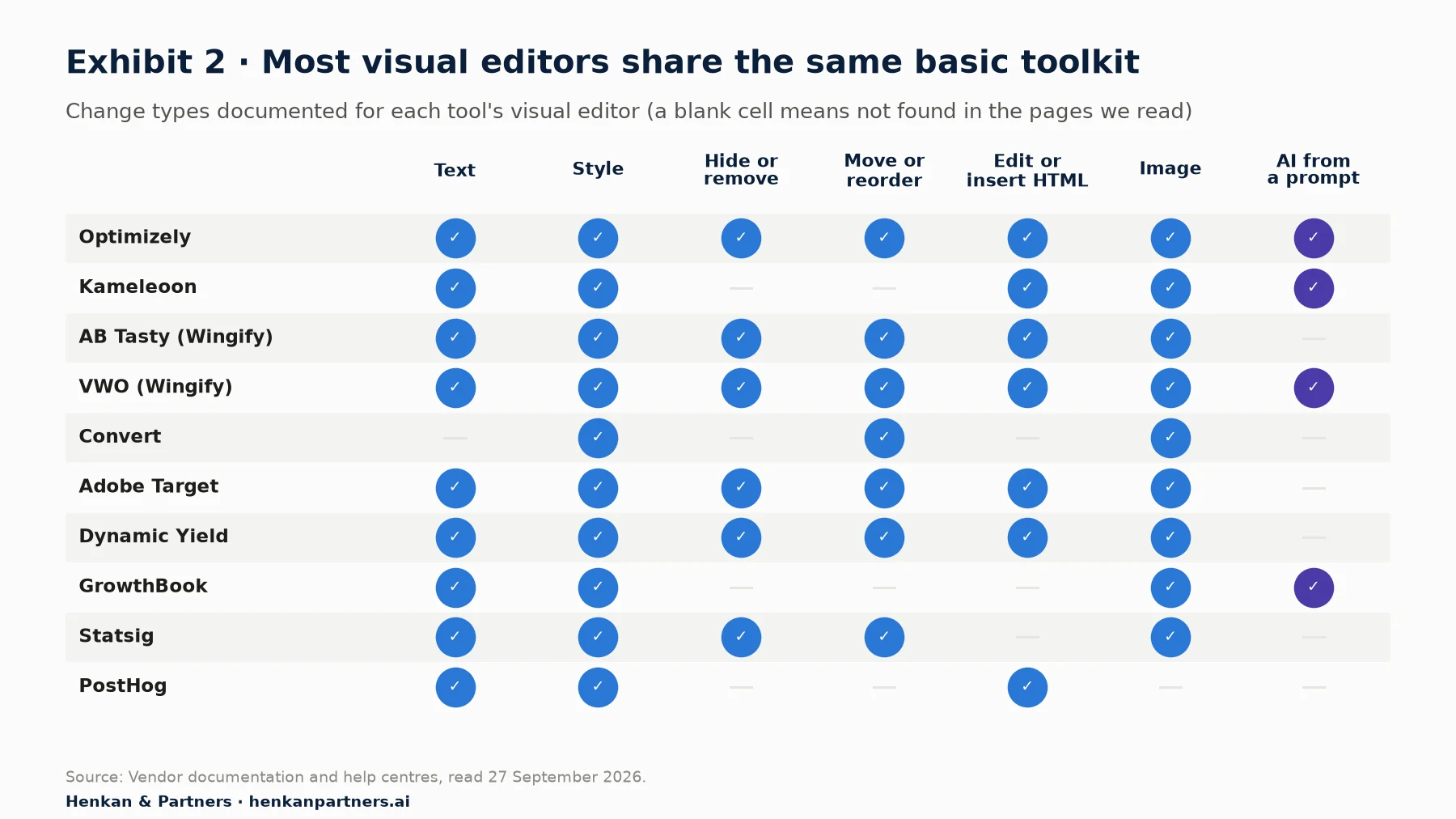
What this shows. Most tools share the same basic toolkit, so the choice of tool matters less than how you use it. The bigger differences lie in how each tool handles pages that change after loading, and in the AI features added since late 2024.
Each tool also documents its limits. The ones that matter most for e-commerce teams:
| Tool | Documented limitations worth knowing |
|---|---|
| Optimizely | If you navigate away from the loaded URL in interactive mode, changes are not applied to the original URL. Insert HTML "requires some HTML knowledge". |
| Kameleoon | The graphic editor does not work in incognito mode, when cross-site cookies are blocked, or on sites that restrict iframes. Kameleoon advises: "Never combine HTML code with other native editing capabilities of the Graphic editor, unless you know exactly what you are doing." |
| AB Tasty (Wingify) | Edit HTML can overwrite page templates and remove the JavaScript events attached to them, such as a button's click behaviour. |
| VWO (Wingify) | "Do not use Edit HTML ... on dynamic content such as product image/price/description, cart product count, dynamic headlines." Full-page HTML edits are not recommended. |
| Convert | The visual editor "cannot be used to set up A/B tests for single page apps"; use the code editor instead. |
| Adobe Target | The classic editor "does not work well with Single Page Applications"; the Move feature does not support z-index; image swaps in carousels do not work. |
| Dynamic Yield | "The more changes each variation contains, the more risk there is of HTML conflicts." Up to 20 changes per variation; no mobile view for editing. |
| GrowthBook | "Heavily client-side-rendered apps (React, Vue, Svelte) may flicker or fight the SDK when the framework re-renders the DOM." |
| PostHog | No-code experiments are in beta and not suited to single-page applications; script, iframe, object and embed tags are restricted. |
A pattern runs through these warnings. Changes to what an element looks like (text, style, visibility) are robust. Changes that replace an element's HTML are fragile, because they can remove the site's own behaviour and content. VWO's guidance puts it plainly: "Use other operations like Move, Resize, Change Text wherever possible. They do not interfere with the dynamism of any element."
For marketers. Prefer the smallest change that expresses your idea. Change the text of a button rather than replacing the button's HTML; hide an element rather than deleting its container. Small changes are faster, safer and easier to hand to developers if the variant wins.
Section 3 · Selectors
Tests often break because the element they target has moved or been renamed
A CSS selector is a pattern that picks elements. MDN explains that selectors "are patterns used to match, or select, the elements you want to style" and that JavaScript uses the same patterns to find elements. There are more than 60 kinds, but four matter for testing: by ID (`#main-title`), by class (`.product-title`), by attribute (`[data-test="add-to-cart"]`) and by position (`div:nth-of-type(6)`).
When you click an element in a visual editor, the tool writes a selector for you. It tries to pick something unique, but it can only use what the page offers. If the page has no stable name for the element, the tool falls back on its position in the tree, and position is the first thing to change when someone adds a banner or reorders a block.
![Ladder of five selector types from most fragile to most robust, with examples. 1, most fragile: a long positional path such as #ProductSection-product-template > div:first-child > div:first-child > div:nth-of-type(6), which breaks when any block is added or moved (example quoted by Kameleoon). 2: an auto-generated class such as ._23_aKvs-b8bW2Vg3fwHozO, produced by build tools like css-loader's default hash, which can change when the code or build settings change. 3: an ID containing a long number such as #product-83749201, which Kameleoon's editor avoids by default when the number has more than five digits. 4: a readable class such as .product-title, stable until a redesign. 5, most robust: a data attribute agreed with developers such as [data-test="add-to-cart"], an explicit contract that survives design changes.](/images/articles/dom-manipulation-ab-testing-marketers/exhibit-3-selector-robustness-ladder.webp)
What this shows. The further down the ladder, the longer a test survives site updates. Tools help where they can, but the durable fix sits with the website team: giving key elements names that are meant to stay.
Why selectors break
- Position-based paths. Kameleoon warns that long paths such as `#ProductSection-product-template > div:first-child > div:first-child > div:nth-of-type(6) > ...` are "more likely ... to not cover all the different use cases". Add one block above and the path points somewhere else.
- Automatically generated class names. Many modern sites use build tools that turn a class such as `title` into a scrambled name. The widely used webpack css-loader defaults to a hash, producing classes like `._23_aKvs-b8bW2Vg3fwHozO`. These names change when the underlying code, file location or build settings change, even if nothing visible on the page has changed.
- Generated IDs. IDs that include long numbers are often created per page load or per product. Kameleoon's editor avoids IDs "that have a number with more than 5 digits" by default for this reason.
- Different templates on mobile. Some sites send different HTML to mobile and desktop visitors, either at the same URL or on separate URLs, as Google's mobile guidance describes. A selector that works on desktop may match nothing on mobile.
- Content that loads later. Recommendations, reviews, prices and pop-ups often arrive after the first render. If the tool looks before the element exists, nothing happens.
How to make selectors stable
The testing world has borrowed a solution from automated software testing. Playwright, Microsoft's testing framework, warns that "your DOM can easily change so having your tests depend on your DOM structure can lead to failing tests" and recommends user-facing attributes and "explicit contracts". For A/B testing, the contract is a data attribute: developers add `data-test="add-to-cart"` or similar to the elements you test most, and promise not to remove them. MDN notes that data attributes can be used directly in CSS selectors and by scripts.
Most visual editors let you edit the selector they generated. VWO, for example, offers "Use Classes/Custom attributes", "Use Tag Name" and "Enter path manually"; Optimizely documents how to escape special characters. Adobe recommends unique IDs for top-level elements, since Target anchors its selectors to the closest ancestor with an ID.
For leaders. Ask your web team to add stable data attributes to the 20 to 30 elements you test most: main calls to action, price and delivery blocks, product titles, navigation, search, and the main blocks of the home, category, product and cart pages. It is a small, one-off task that removes a common cause of test breakages and makes AI-generated variants more reliable too.
Section 4 · Pages that change
Content that loads late and single-page applications need special handling or a developer
Many modern pages are not finished when they first appear. Prices update, stock messages appear, recommendation carousels load, and in single-page applications whole screens are replaced without a new page load. Each of these can defeat a simple "find and change" instruction in two ways: the element does not exist yet when the tool looks for it, or the site's own code redraws the element after the tool has changed it.
Testing tools have mechanisms for this. Optimizely "uses `MutationObserver` to determine when something changes on your site to apply Visual Editor changes", and reapplies changes while the page is active; this replaced an older approach of looking for elements only during the first two seconds after load. VWO's editor has settings that repeatedly check for elements and apply changes as soon as they appear. Dynamic Yield asks you to switch on "Serve on Every SPA Event" for single-page applications, and Adobe Target needs a dedicated single-page app mode with developer set-up.
| What you want to change | Risk | Who should build it |
|---|---|---|
| Static text, headlines, button labels | Low | Marketer in the visual editor |
| Colours, sizes, spacing, borders | Low | Marketer in the visual editor |
| Hide or reorder existing blocks | Low to medium: check mobile | Marketer, with QA on every template |
| New banner, badge or message | Medium: layout shift, accessibility | Marketer with a pre-built widget, or developer |
| Prices, stock, cart count, recommendations | High: dynamic content can break | Developer, or a server-side test |
| Anything on a single-page application | High: changes can vanish or persist on the wrong screen | Developer, with the tool's SPA settings |
| New behaviour: filters, forms, checkout steps, calculations | High: logic, tracking and support | Developer; often better server-side |
| Pricing, shipping rules, search ranking | Not suitable for DOM changes | Server-side test |
If a test needs more than a few instructions on dynamic content, it is usually cheaper and safer to build it in code or on the server. Our comparison of JavaScript injection, client-side and server-side testing explains how to choose, and our developer's guide to DOM manipulation covers the code side of these cases.
For marketers. Before building, ask two questions about the element you want to change: does it exist in the page when it first loads, and does it change while the visitor is on the page? If either answer is "no" or "not sure", involve a developer early.
Section 5 · Speed and flicker
A variant that slows the page or makes it jump can lose more than it gains
Because the original page arrives first, there is always a gap before the variant is applied. If visitors see the original and then the change, that is flicker, and it can bias the test: people notice the change itself, not just the new design. Many tools therefore offer an anti-flicker snippet that hides the page until the test is applied or a time limit is reached.
Hiding the page has its own cost. DebugBear, a web performance monitoring company, defines an anti-flicker snippet as code that "prevents flicker caused by A/B testing tools by hiding the original page content until the customizations have been applied". In one lab test on a real homepage, Largest Contentful Paint (the time until the main content appears) was 2.7 seconds without the snippet and 6.0 seconds with it.
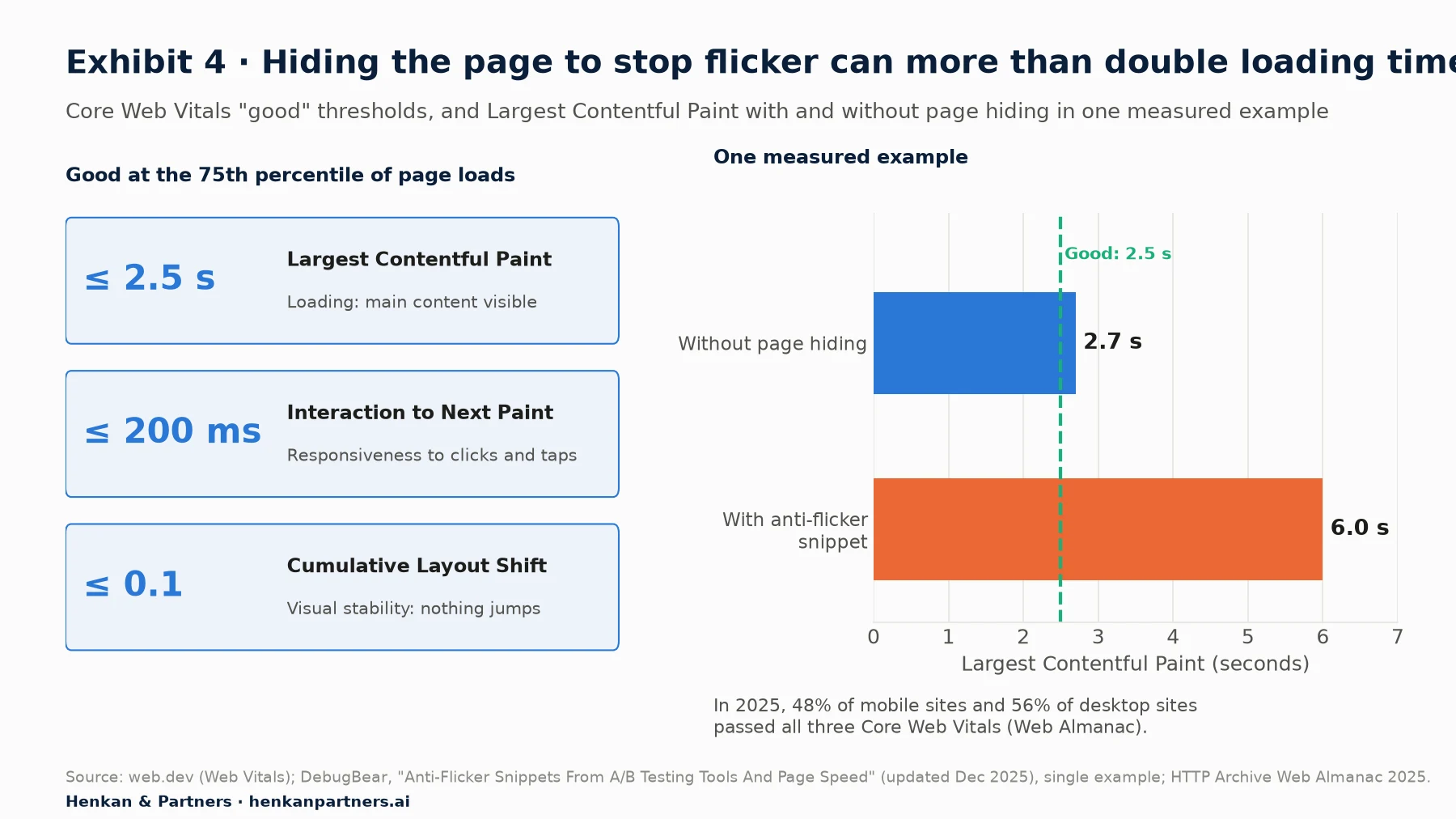
What this shows. In this example, hiding the page more than doubled loading time, from 2.7 to 6.0 seconds, taking a page that was already just over Google's 2.5-second "good" limit far beyond it. A single lab test is not an average, but it shows the scale of the risk, and most sites have little room to spare: fewer than half of mobile sites pass all three Core Web Vitals.
Layout shift is the other speed risk marketers control directly. Google's web.dev lists "dynamically injected content such as ads, embeds, and iframes without dimensions" among the most common causes of poor Cumulative Layout Shift, and notes that content injected near the top of the page causes bigger shifts. A promotional banner pushed in above the product after the page has drawn is the classic example.
Five habits that protect speed
- Prefer CSS changes. Optimizely's advice for flicker is to move visual changes into CSS, which runs immediately when set to synchronous timing. Colour, size, spacing and hiding can all be done in CSS.
- Reserve space for anything new. If a banner or badge is added, give the space a fixed height so the page does not jump. Google recommends `min-height` or `aspect-ratio` for this.
- Add below rather than above. Messages placed below the main content cause smaller layout shifts than messages pushed in at the top.
- Keep variants small. Dynamic Yield notes that more changes per variation mean more risk of conflicts; Optimizely notes that every visual change adds a line of code, and that too many lines can cause flashing.
- Measure both versions. Compare page speed for control and variant in your analytics or real-user monitoring during the test, not just conversion rate.
Section 6 · Accessibility
Every variant must stay usable with a keyboard, a screen reader and a small screen
A variant is a new version of your site, and it has to meet the same accessibility standard as the original. Changes made in a visual editor can break accessibility without anyone noticing: a new colour that fails contrast, a banner that covers the element a keyboard user is on, or an image with no text alternative. WCAG 2.2, the current W3C guidelines, gives measurable tests for most of these.
| Check | WCAG 2.2 criterion | What it requires | Typical test mistake |
|---|---|---|---|
| Text contrast | 1.4.3 Contrast (Minimum), AA | At least 4.5:1 for normal text; 3:1 for large text (18 point, or 14 point bold) | Light grey urgency message or white text on a bright promotional colour |
| Images | 1.1.1 Non-text Content, A | Every meaningful image has a text alternative | Swapped hero image or new badge with no alt text |
| Focus visible | 2.4.7 Focus Visible, AA | Keyboard users can see where they are | Restyled button that removes the focus outline |
| Focus not covered | 2.4.11 Focus Not Obscured (Minimum), AA, new in 2.2 | A focused element is not entirely hidden by author-created content | Sticky banner or pop-in that covers the focused link |
| Target size | 2.5.8 Target Size (Minimum), AA, new in 2.2 | Pointer targets at least 24 by 24 CSS pixels, with exceptions | Small close button on a pop-in, or tightly packed new links |
Two further points matter for testing. Reordering elements visually can make the reading and focus order confusing for keyboard and screen reader users, so check the order with the Tab key after any move. And pop-ins and overlays need to be closable with the keyboard; this usually needs a developer, which is one reason to use a tool's pre-built, tested widgets rather than hand-built HTML.
For marketers. Add three quick checks to every test: run the variant's colours through a free contrast checker, press Tab through the changed area to see that focus is visible and not covered, and check new images have alt text. Five minutes of checking avoids shipping a winner that excludes customers.
Section 7 · Quality assurance
A structured QA pass before launch catches the problems that ruin test results
Vendors agree on what good QA looks like. Optimizely advises using its Preview tool "to run the changes on the webpage outside the Visual Editor environment", checking desktop, mobile and tablet views, and confirming that the test activates on each targeted URL and that click goals "convert when clicked on". AB Tasty adds "different environments (e.g. logged in/not logged in)". Convert sets out four stages: preview links, forced-variation links with a QA audience in fresh incognito windows, checking that visitors and goals appear in reports, and then removing the QA audience before launch.
Every major tool has a way to see a variant before real visitors do: Optimizely forces a variation with a URL parameter, AB Tasty has a QA mode that makes a campaign "visible to you only", Kameleoon has a simulation panel with a QR code for mobile, and Adobe Target has Activity QA links whose traffic is kept out of the live report (except when reporting runs through Adobe Analytics).
The QA checklist
| Area | What to check |
|---|---|
| Pages | Every page type and URL pattern in the targeting, including long and short product names, sale items, out-of-stock items and empty states |
| Devices and browsers | Mobile, tablet and desktop; Chrome, Safari, Firefox and Edge at least; mobile Safari separately |
| User states | Logged in and logged out, new and returning, cookie consent accepted and refused, different languages or markets |
| Late content | Pop-ups, carousels, recommendations and anything that loads after scrolling or clicking |
| Flicker and speed | Reload on a slow connection; watch for the original flashing, the page staying blank, or content jumping |
| Goals and tracking | Each goal fires once per action, in both control and variant; the visitor is counted in the right variant |
| Accessibility | Contrast, keyboard focus, alt text and target size (Section 6) |
| Other tools | Chat widgets, consent banners, personalisation campaigns and other running tests on the same page |
QA does not stop at launch. Look at the test on the live site within the first hours, check that traffic is split as planned, and watch the first day's data for goals that never fire or fire far too often. A broken traffic split or a dead goal invalidates the result, however long the test runs. Our guide to A/B testing statistics explains the sample ratio check.
For leaders. Make QA sign-off a named step with a named person, separate from the person who built the test. It adds a day at most, and it is far cheaper than a month of traffic spent on a broken test.
Section 8 · AI editors
AI editors turn a written request into variant code, and the same rules still apply
Since late 2024, several major tools, including Optimizely, Kameleoon, VWO and GrowthBook, have added ways to build variants from a written prompt. You describe the change, the AI writes the CSS and JavaScript, and you preview and edit the result. Under the surface nothing changes: the generated code still finds elements with selectors and edits the DOM.
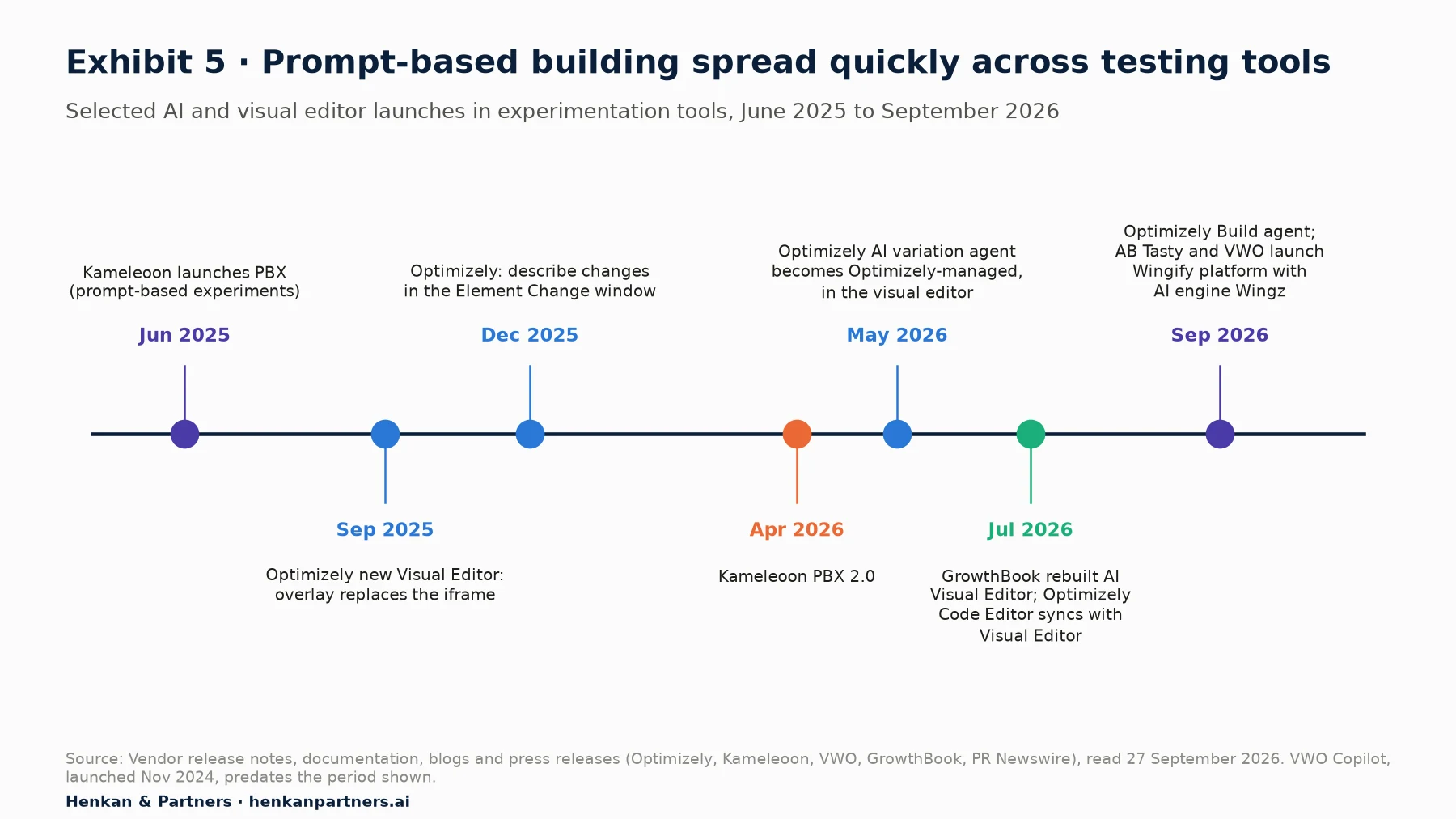
What this shows. In under two years, prompt-based building has spread from a few early launches to many of the main testing tools. The editor you learned in 2024 has probably changed, and so has the division of work between marketers and developers.
Vendors report fast adoption, though these are their own figures with no independent check. Kameleoon says that "the use of graphic and code editors has declined by over 50%" as AI arrived in its platform, and that its prompt-based tool created more than 40% of the experiments built by early adopters within three months of launch. Our own research on prompt-built tests looks at how well such tests perform.
What AI editors cannot do
The vendors are clear about the limits. Kameleoon's FAQ says its prompt-based tool "can't generate code for prompts that require backend logic or server-side changes" and that the AI "might not properly handle context within iframes or a shadow DOM". Optimizely states that "any code Opal generates is a custom code solution and falls outside the scope of Optimizely Support." In other words, AI makes building faster, but you own the result.
- Name targets clearly. Kameleoon recommends describing elements with "stable identifiers (aria-labels, visible text, selectors)". "The green Add to cart button under the price" works better than "the button".
- One change per prompt. Build the variant in small steps and preview after each one, so you can see which instruction caused a problem.
- Read the code view. Look for long, position-based selectors (Section 3) and ask the AI, or a developer, to replace them with stable ones.
- Run the full QA checklist. Speed, accessibility and tracking checks apply exactly as for hand-built variants.
Section 9 · By team size
The right way of working depends on who builds tests and how many you run
| Team | Recommended set-up | Why |
|---|---|---|
| One or two people (small shop or first programme) | Visual editor and AI prompts for text, style and layout; pre-built widgets for banners and pop-ins; the QA checklist on every test; a developer on call for anything dynamic | Quick wins without a release, with clear limits on what not to attempt |
| Growing CRO or e-commerce team | Data attributes on key elements; a shared library of tested snippets and widgets; separate builder and QA reviewer; speed measured per variant | More tests on more templates make breakage and conflicts more likely |
| Multi-brand or international retailer | Developers build complex variants in code or server-side; marketers keep visual changes; design-system rules for contrast and spacing; winners rebuilt properly in the site code | Scale needs consistency, performance budgets and clear ownership |
For leaders. A winning variant built in the testing tool is a temporary patch, not a finished feature. Optimizely advises that developers rebuild winners properly in the production site, warning that simply pasting variation code into the site "is not sustainable" as wins accumulate. Budget developer time for that step, or the testing tool slowly becomes part of your website.
Section 10 · What to do next
Five moves to build tests that work the first time
1. Learn to read your tool's code view
Pick three recent tests and find the selectors and actions in the code. It is the fastest way to understand why tests break.
2. Ask for stable markers
Agree with developers on data attributes for the elements you test most, and ask that they are kept through redesigns.
3. Set simple rules on what to build where
Use the table in Section 4: text, style and simple layout in the visual editor; dynamic content, single-page applications and logic with developers or server-side.
4. Make QA and speed checks routine
Use the QA checklist and accessibility checks on every test, and compare page speed between control and variant.
5. Use AI to build faster, not to skip checks
Let AI draft variants, then read the code, fix fragile selectors and run the same QA. Keep a person responsible for what goes live.
Our view. Changing a page in the browser is the quickest way to put an idea in front of customers, and for many teams it is the right starting point. The aim is a better experience that grows revenue and lifetime value, so a test that breaks, slows the page or excludes some customers works against that aim, however good the idea. Small, well-checked changes are how visual testing earns its place.
FAQ
Frequently asked questions about DOM manipulation in A/B testing
Frequently asked questions
What is DOM manipulation in A/B testing?
It is how most client-side A/B tests work: the testing tool's script changes the page in the visitor's browser after it starts to load. It finds elements with CSS selectors and changes their text, style, position or HTML, so different visitors see different versions without a new website release.
Do I need to know how to code to run A/B tests?
Not for simple changes. Visual editors in tools such as Optimizely, Kameleoon, AB Tasty, VWO and Convert, and AI prompt editors in several of them, let marketers change text, styles, images and layout without coding. Changes to dynamic content, single-page applications or site logic need a developer.
Why did my A/B test stop working?
A common cause is that the selector no longer matches the element. A redesign, a new block above the element, an automatically generated class name or a different mobile template can all break it. Check the selector in the code view and ask developers for stable data attributes.
What is flicker in A/B testing and how do I avoid it?
Flicker is when visitors briefly see the original page before the variant appears. Anti-flicker snippets hide the page until the test is applied, but can delay loading. Prefer CSS changes, keep variants small, load the testing tag early and consider server-side testing for key pages.
Can A/B tests hurt SEO?
Not if done properly. Google says to use 302 rather than 301 redirects for redirect tests, add canonical tags to alternate URLs, never show search engines different content from users, and remove test code soon after a test ends. Slower pages can still hurt page experience.
Can AI build A/B test variants for me?
Yes. Several major tools, including Optimizely, Kameleoon, VWO and GrowthBook, now turn written prompts into variant code you can preview and edit. The code still changes the page in the same way, so check selectors, speed, accessibility and tracking as you would for a variant built by hand.
What changes should not be made with a visual editor?
Prices, stock, cart counts, recommendations, checkout logic, search ranking and anything on a single-page application are risky in a visual editor. Vendors such as VWO advise against editing the HTML of dynamic content. Use a developer, a code editor or a server-side test instead.
Key terms
- DOM (Document Object Model)
- The browser's live, in-memory version of the page, organised as a tree of elements. Testing scripts change the DOM, not the HTML file on the server, which is why changes can be undone or overwritten.
- Element
- One part of a page, such as a heading, image, button or block, written as a tag like `<h1>` or `<button>`. Every change in a visual editor is attached to one or more elements.
- Attribute
- Extra information on an element, such as `class`, `id`, `href` or `alt`. Tools use attributes to find elements, and you can change some, such as a link or image source.
- CSS selector
- A pattern that picks elements, such as `.add-to-cart` or `#main-title`. It is the address your change is sent to; if the address changes, the change is lost.
- Data attribute
- A custom attribute starting with `data-`, such as `data-test="add-to-cart"`. Developers can add them as stable markers that do not change when the design does.
- Visual editor (WYSIWYG)
- A point-and-click editor that loads your site and records your changes as code. "WYSIWYG" stands for "what you see is what you get".
- Code editor
- The place in a testing tool where CSS and JavaScript for a variant are written by hand. Visual-editor changes usually appear there as code too.
- Dynamic content
- Content filled in or changed after the page loads, such as prices, stock, recommendations or cart counts. Editing it with a visual editor often breaks it.
- Single-page application (SPA)
- A site built with a framework such as React, Vue or Angular that changes screens without loading a new page. It can undo or outlive your changes unless the tool is set up for it.
- Flicker
- When visitors briefly see the original page before the variant appears. Also called flash of original content.
- Anti-flicker snippet
- A small script that hides the page until the test is applied, or until a time limit passes. It stops flicker but can delay what visitors see.
- Core Web Vitals
- Google's three measures of page experience: Largest Contentful Paint (loading), Interaction to Next Paint (responsiveness) and Cumulative Layout Shift (visual stability).
- Cumulative Layout Shift (CLS)
- A score for how much visible content jumps around while the page loads. Injected banners without reserved space are a common cause.
- WCAG 2.2
- The W3C's Web Content Accessibility Guidelines. Level AA criteria cover contrast, keyboard focus and target size, all of which a variant can break.
- QA (quality assurance)
- Checking a test on real pages, devices, browsers and user states before and just after launch, including that its goals record correctly.
- Prompt-based editor
- An AI feature that turns a written request, such as "make the delivery message more visible", into variant code you can preview and edit.
Sources
Vendor documentation, W3C guidelines, Google and MDN pages and other sources were checked against the original pages on 27 September 2026. Vendor adoption figures are the vendors' own data and are labelled as such. The selector ladder, the build-where table, the QA checklist, the team-size table and the recommendations are Henkan & Partners' own analysis.
- MDN, Introduction to the DOM
- MDN, Element (glossary)
- MDN, CSS selectors
- MDN, Use data attributes
- WHATWG, DOM Living Standard
- web.dev, Rendering performance
- web.dev, Web Vitals
- web.dev, Cumulative Layout Shift (CLS)
- web.dev, Optimize Cumulative Layout Shift
- HTTP Archive, Web Almanac 2025: Performance
- DebugBear, Anti-Flicker Snippets From A/B Testing Tools And Page Speed
- Google Search Central, Minimize A/B testing impact in Google Search
- Google Search Central, Mobile-first indexing best practices
- W3C, Web Content Accessibility Guidelines (WCAG) 2.2
- W3C, Understanding Success Criterion 1.4.3: Contrast (Minimum)
- css-modules (GitHub)
- webpack, css-loader (GitHub)
- Playwright, Best Practices
- Optimizely, Edit elements with the new Visual Editor
- Optimizely, Insert HTML and images
- Optimizely, Dynamic websites and single-page applications
- Optimizely, Test Optimizely Web Experimentation
- Optimizely, Fix flashing or flickering variation content
- Optimizely, Debug variations by forcing behavior with query parameters
- Optimizely, AI variation development agent
- Optimizely, 2025 Web Experimentation release notes
- Optimizely, 2026 Web Experimentation release notes
- Optimizely, Implement wins on your production site
- Kameleoon, Getting started with the Graphic editor
- Kameleoon, How to troubleshoot Graphic editor changes
- Kameleoon, Introducing Prompt-Based Experimentation, June 2025
- Kameleoon, Prompt-based experimentation FAQ
- Kameleoon, A developer's guide to prompt-based experimentation, November 2025
- Kameleoon, PBX 2.0 is changing testing (again), April 2026
- Kameleoon, New simulation panel
- Kameleoon, 12 A/B testing and experimentation stats you need to know in 2026
- Kameleoon, Expanding PBX with PBX Ideate, May 2026
- PR Newswire, AB Tasty and VWO Unite Under Wingify, September 2026
- AB Tasty, How to create and edit content in the visual editor
- AB Tasty, Widgets
- AB Tasty, How to use the QA mode
- Wingify (VWO), Manage Elements in Visual Editor to Create Variations
- VWO, Working with Element's Selector Paths
- Wingify, Best Practices for Using Wingify Editor
- VWO, Create AI-Powered Variations using VWO Editor Copilot
- VWO, VWO Copilot: AI-powered optimization, November 2024
- Convert, The Visual Editor in Convert Experiences
- Convert, No-code and Code Editors and When to Use Each
- Convert, QA Guide
- Adobe Experience League, Visual Experience Composer
- Adobe Experience League, VEC Best Practices and Limitations
- Adobe Experience League, Single Page App VEC
- Adobe Experience League, Activity QA
- Dynamic Yield, Visual Edit Campaigns
- GrowthBook, Visual Editor
- GrowthBook, Rebuilt from the ground up, July 2026
- Statsig, Visual Editor (Low-code Experiments)
- Statsig, Visual Editor Setup and Usage
- PostHog, Creating a no-code web experiment
- Henkan & Partners, Advanced DOM Manipulation for A/B Tests: A Developer's Guide
- Henkan & Partners, JavaScript Injection, Client-Side or Server-Side A/B Testing
- Henkan & Partners, A/B Testing Statistics for Marketers
- Henkan & Partners, The Essential Guide to A/B Testing
- Henkan & Partners, How AI Is Reshaping A/B Testing: What 19 Prompt-Built Tests Tell Us