Focus
The GA4 Tracking Plan: How Product, Design, Engineering and Marketing Request, Build and Check Tracking Together
Alexandre Suon · 2026-10-02
A GA4 tracking plan is the shared document in which product managers, designers, developers and marketers agree what Google Analytics 4 should measure, how each event is named and who owns it. This capstone of The ABC of GA4 shows how the four roles request, build and check tracking together, from the first question to the day an event is retired.
Executive summary
- Most GA4 problems are coordination problems, not tool problems. In dbt Labs' 2024 survey of 456 data practitioners, 57% named poor data quality and almost half named ambiguous data ownership among their biggest challenges; a tracking plan with named owners addresses both.
- Every request should travel the same seven stages: question, spec, build, QA, publish, monitor, retire. Each stage has one lead, one artefact and one gate, so a request cannot reach production without a business question and acceptance criteria.
- The tracking plan is a sheet with one row per event and five tabs. Events, parameters and custom definitions, key events and audiences, change log and retired items; every row carries an owner, a status and a version.
- GA4 accepts almost any event you send, so governance has to live in the plan. Event names are case sensitive, custom events do not appear in most standard reports, and a standard property has only 50 event-scoped, 25 user-scoped and 10 item-scoped custom dimensions.
- Tracking belongs in the sprint, not in a separate queue. Measurement questions go into refinement, events into the definition of done, and a quarterly review retires what nobody uses.
- AI assistants and MCP servers can draft specs, lint names and compare dataLayer pushes with the plan, but a human must own every publish. Google's own GA4 MCP server is read-only and labelled experimental; any agent that can edit Tag Manager should have Edit rights only, in its own workspace.
Section 1 · The basics
A tracking plan is the contract between the people who ask questions and the people who build tracking
A GA4 tracking plan (also called a measurement plan or event specification) is a living document that lists every event and parameter your website or app sends to Google Analytics 4, the business question each one answers, how and when it fires, which custom dimensions and key events depend on it, who owns it and what state it is in. It is the single source of truth that product, design, engineering, marketing and analytics teams use to request, build, check and retire tracking.
Google Analytics is everywhere. W3Techs found it on 47.2% of all websites in October 2026, an 82.7% share of the sites that use a traffic analysis tool it monitors. Yet in most organisations nobody can say, without opening the code, what the property actually collects. Events were added by different people for different launches. Names drift and reports break silently.
The earlier steps of The ABC of GA4 taught each role to ask, brief and conclude. This shared step 6 shows how those requests meet in one place, so four roles do not build four incompatible versions of the same property.
Why GA4 in particular needs one
GA4 is flexible by design, and that flexibility is the problem. According to Google's documentation, it accepts any custom event name that follows a few syntax rules, and on web data streams there is no limit on the number of distinct event names. Names are case sensitive, so `sign_up` and `Sign_Up` become two events. Custom events do not appear in most standard reports. Custom dimensions must be registered in Admin before they show in reports, and Google says it takes 24 to 48 hours before you can report on them. None of this is enforced by a schema. If the rules are not written down and owned, nobody applies them.
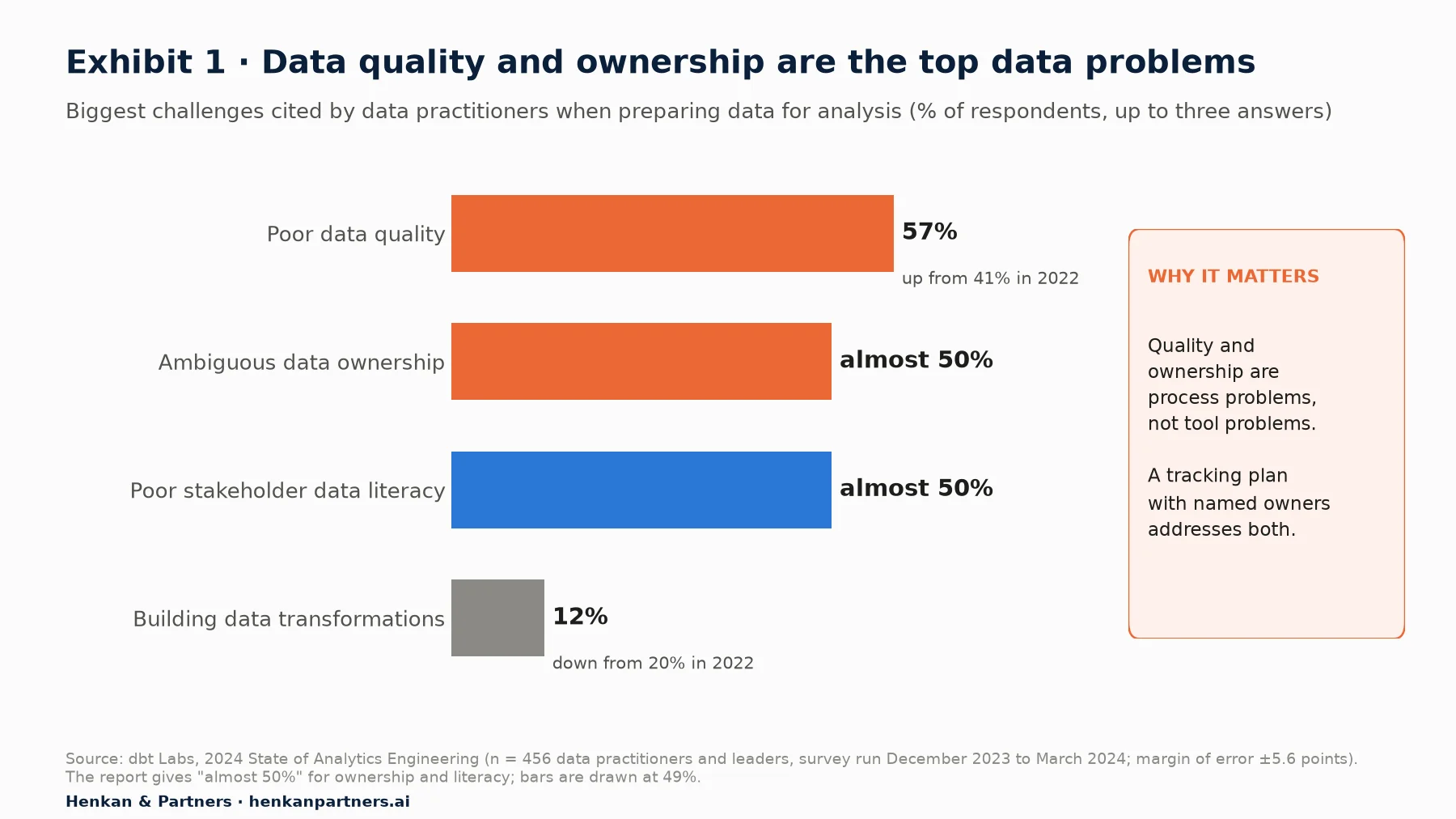
What this shows. The hard part of analytics is no longer building pipelines: only 12% of respondents named data transformations as a top challenge. The hard parts are trust and ownership, and a tracking plan gives every event an owner and a definition.
Section 2 · The lifecycle
Every tracking request should pass through seven stages, each with an owner and a gate
A tracking request is any ask to add, change or remove something GA4 collects: a new event, an extra parameter, a key event, an audience, a custom dimension. In our experience, most broken tracking comes from skipping a stage, usually the first (no clear question) or the last two (no monitoring, no retirement). The lifecycle below is a Henkan & Partners framework that works for a team of one or twenty.
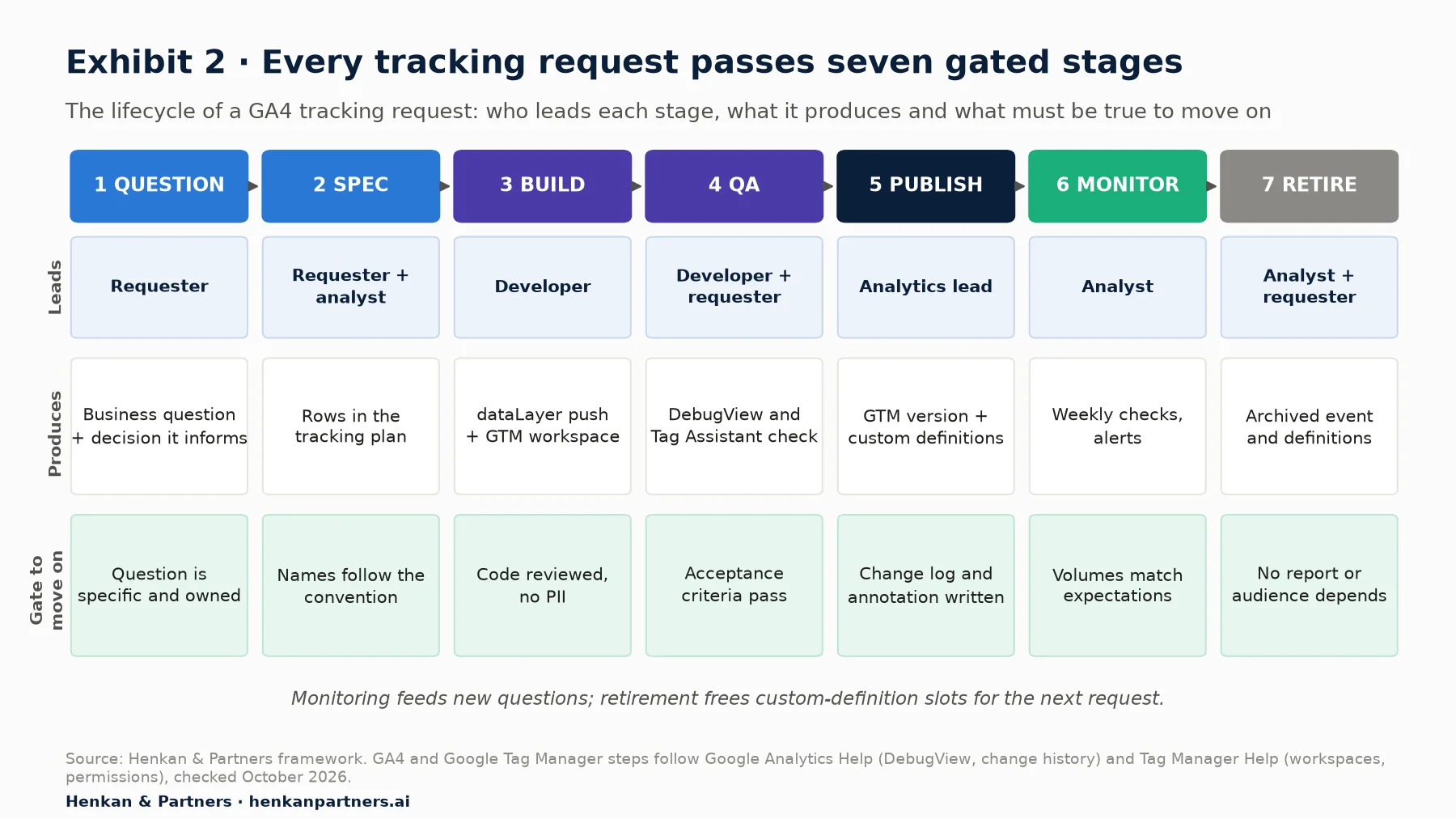
What this shows. Each stage produces something another role can check, and no request moves on until its gate is met. Monitoring generates new questions, and retirement frees scarce custom-definition slots.
1. Question: start from the decision, not the event
The requester writes the business question and the decision it will inform. "Track the wishlist button" is not a question. "Do shoppers who save items come back and buy them, so we know whether to promote the wishlist in emails?" is. The gate: the question is specific, someone owns it, and the analyst confirms GA4 is the right tool (some questions belong in a product analytics tool, a survey or BigQuery).
2. Spec: turn the question into rows in the plan
The requester and the analyst translate the question into events and parameters, written as rows in the tracking plan. Each role briefs differently, and each B article of the paths covers it in depth: How product managers should ask for GA4 tracking (from user story to event spec), how designers should annotate tracking in Figma, from tracking request to dataLayer spec, and UTM conventions and key events for marketers. The gate: names follow the convention, recommended events are used where they exist, and acceptance criteria are written.
3. Build: one implementation, reviewed like code
The developer pushes the data to the dataLayer and the tag is configured in Google Tag Manager (or in code with gtag.js). The work happens in a Tag Manager workspace, not directly in the live container. The gate: code review passed, consent handling respected (see our guide to user consent), and no personal data in any parameter. Google forbids sending personally identifiable information to Analytics.
4. QA: the requester checks the data, not just the developer
The developer checks the implementation in Tag Assistant preview mode and in GA4's DebugView (Admin > Data display > DebugView), which shows events from debug-enabled devices in near real time. The requester then checks that the data answers the question, using the acceptance criteria from the spec. The step-by-step method, including network requests and automated dataLayer tests, is in debugging and QA for GA4. The gate: every acceptance criterion passes.
5. Publish: one person presses the button, and writes it down
The analytics lead (or whoever holds Publish permission in Tag Manager) creates and publishes the container version, registers any custom dimension, marks key events and writes the change log entry. The gate: change log entry and GA4 annotation written, plan status set to Live.
6. Monitor: check that it keeps working
A weekly check of event volumes, plus custom insights on the events that matter most, catches silent failures before the monthly report does. The gate is permanent: volumes stay within expected ranges.
7. Retire: remove what nobody uses
When an event no longer answers a live question, the analyst and the requester agree to retire it: remove the tag, archive the custom dimension, move the row to the Retired tab. The gate: no report, audience or exploration still depends on it. Section 8 covers how.
Section 3 · The sheet
One sheet with five tabs is enough to make requests buildable and auditable
A shared spreadsheet that every role can read, with edit rights limited to the analyst and requesters, covers most organisations. Dedicated tools such as Segment Protocols go further: they hold the plan as a schema and flag violations when collected events do not match it. Whatever the tool, the structure is the same.
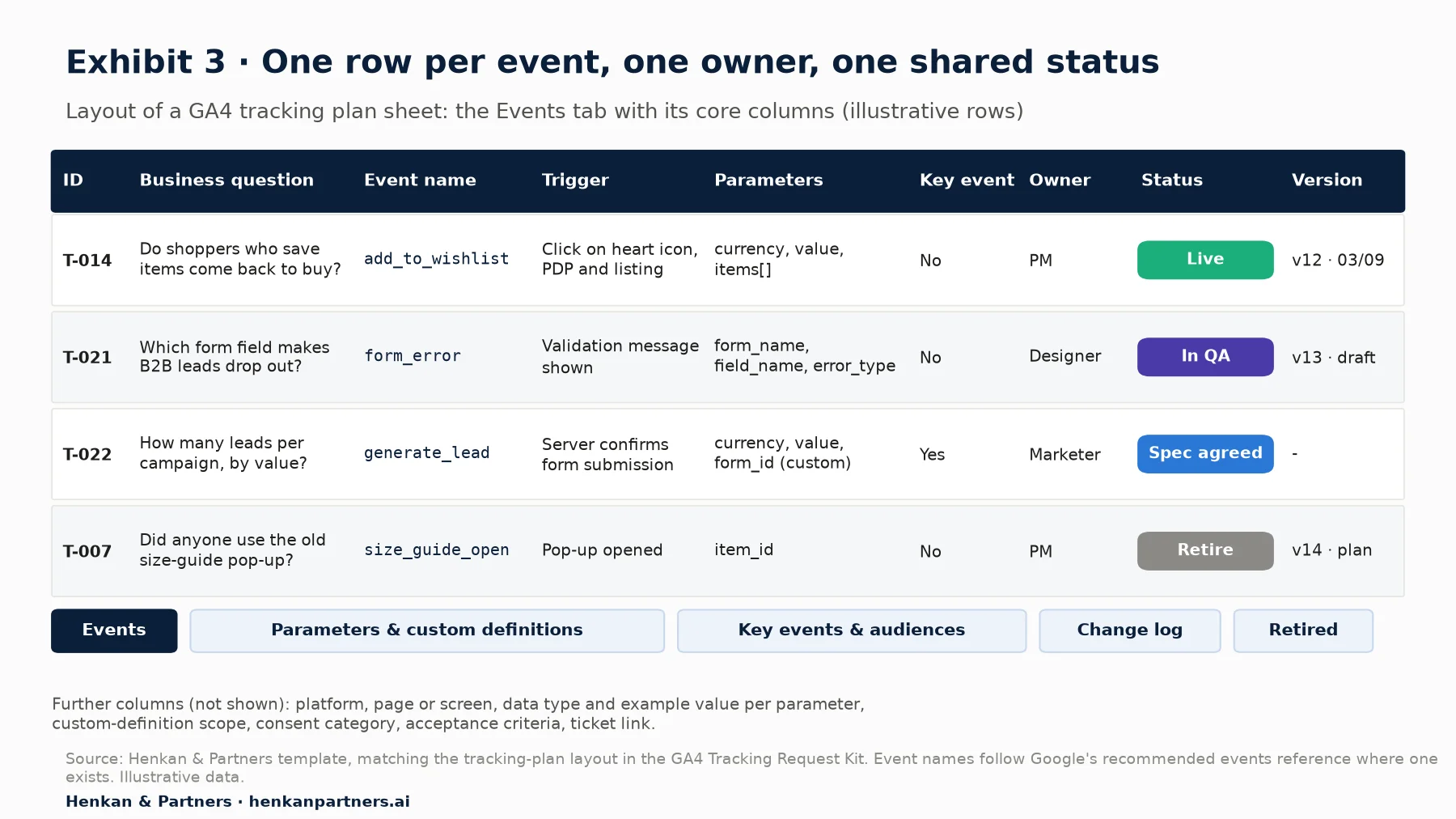
What this shows. Each row links a business question to an event, a trigger, its parameters, an owner and a status that every role can read. The status column is what turns the sheet from documentation into a workflow: a row cannot be Live without having been Spec agreed and In QA first.
The columns that matter
| Column | What it holds | Who fills it |
|---|---|---|
| ID and business question | A stable reference (T-014) and the question, in plain words, with the decision it informs | Requester |
| Event name | The exact GA4 name, following the convention; a recommended event wherever one exists | Analyst |
| Trigger | When the event fires ("server confirms submission", not "on submit") | Requester, checked by developer |
| Parameters | Each parameter with data type, example value and whether it is required | Analyst |
| Custom definition and scope | Whether a parameter is registered as an event-, user- or item-scoped dimension or metric | Analyst |
| Key event / audience | Whether the event is marked as a key event or feeds an audience | Marketer or analyst |
| Platform and page | Web or app; page types or screens | Requester |
| Consent category | Which consent purpose governs it | Developer, with legal input |
| Acceptance criteria | Testable statements used in QA | Requester |
| Owner, status, version, ticket | One named owner; Proposed, Spec agreed, In build, In QA, Live, Retire, Retired; container version and date; ticket link | Analyst |
The other four tabs
- Parameters and custom definitions. One row per parameter, defined once and reused across events (`form_name` means the same thing everywhere). It also lists every registered custom dimension and metric, so you can see how many slots are left.
- Key events and audiences. What is marked as a key event, which audiences exist, what each is used for, and which ad platforms they are shared with.
- Change log. Every change with date, container version, author, reason and expected impact on reports (Section 6).
- Retired. Events and definitions that were removed, with the date and the reason. This tab is what lets an analyst explain a break in a two-year trend.
The free kit linked in Section 11 contains this layout ready to copy, together with the event spec template and the QA checklist.
Section 4 · Roles
Clear ownership, not more meetings, is what keeps tracking from decaying
A RACI matrix assigns, for each stage, who is Responsible (does the work), Accountable (signs off; exactly one per stage), Consulted and Informed. The value is in the A column. When everyone is vaguely responsible for tracking, nobody is accountable when it breaks.
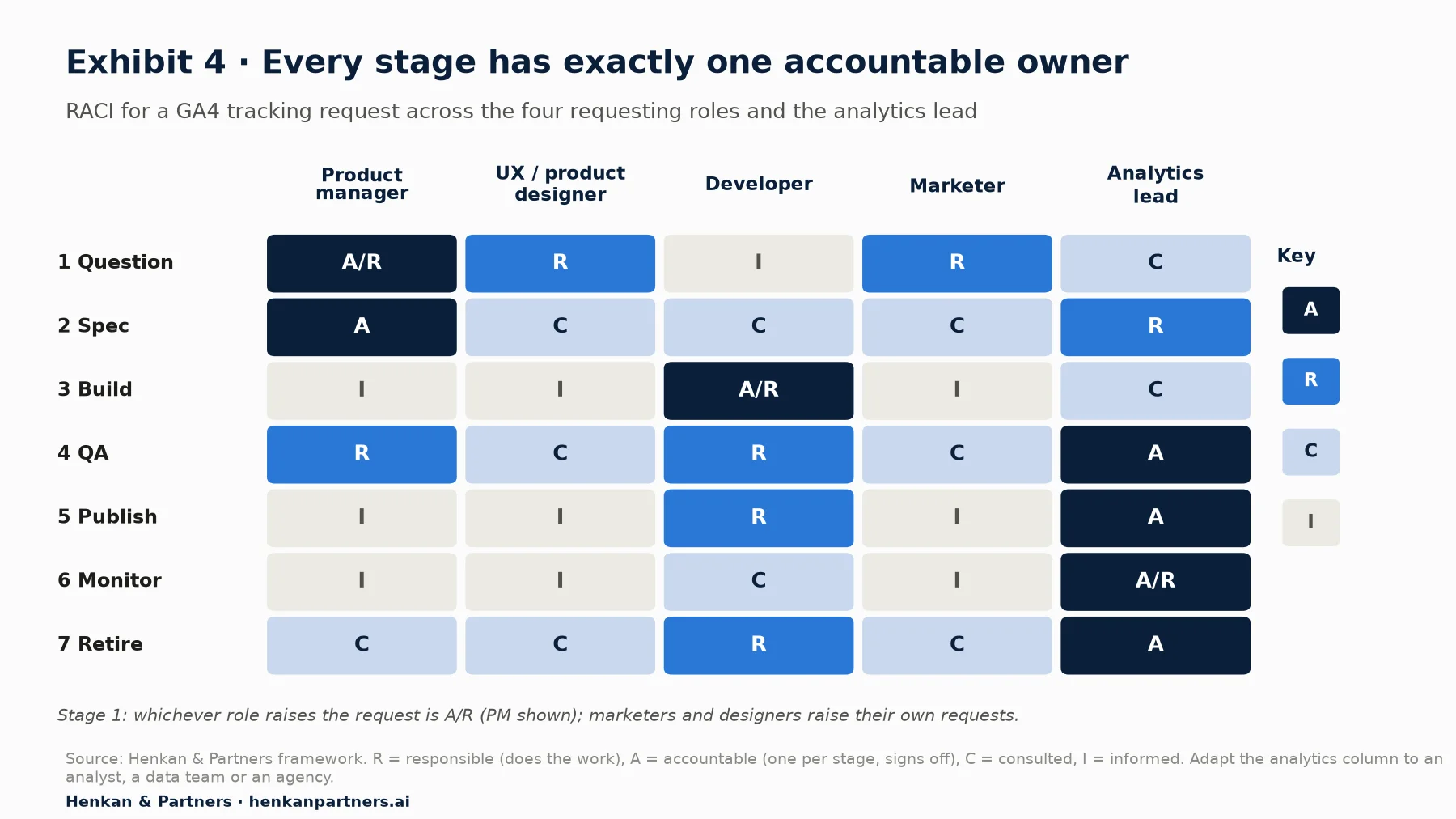
What this shows. The requester owns the question and the spec, the developer owns the build, and the analytics lead owns everything that touches the live property. Designers and marketers appear as consulted on most stages because their requests often affect shared events. In a small team one person may hold several columns.
For leaders. Name one analytics lead who is accountable for the GA4 property, even part-time, and give them Publish rights in Tag Manager and the Editor or Administrator role in GA4. Everyone else can request, spec and test. Google Tag Manager's permission levels (Read, Edit, Approve, Publish) and GA4's roles (Administrator, Editor, Marketer, Analyst, Viewer) are built for exactly this split.
Our view. Agencies and freelancers can hold the R for build and monitoring. The A for the property should stay inside the company.
Section 5 · Naming governance
Naming rules must be written down once, because GA4 will accept almost anything
A naming convention is the cheapest governance you will ever implement and the most expensive to retrofit. Write it on the first tab of the plan and apply it in the spec review.
The rules GA4 itself enforces
- Event names must start with a letter and use only letters, numbers and underscores, no spaces. They are case sensitive.
- Event names and parameter names can be up to 40 characters; parameter values up to 100 characters (page_location: 1,000; page_title: 300).
- Up to 25 parameters per event, and 25 user properties per property; user property names up to 24 characters and values up to 36.
- Reserved names cannot be reused on web streams, including `page_view`, `session_start`, `first_visit`, `click`, `scroll`, `file_download` and `form_submit`; event names cannot start with `query_id`, and parameter names cannot start with `_`, `firebase_`, `ga_`, `google_` or `gtag.`.
The rules your plan should add
- Recommended events first. Google's documentation says to create custom events only when no other events work, because custom events do not show up in most standard reports. If `add_to_wishlist`, `generate_lead`, `sign_up`, `login` or `search` fits, use it with its recommended parameters.
- One case, one pattern. Lowercase snake_case in the verb_object order GA4's recommended events use (`add_to_cart`, `view_item`), so custom events read the same way.
- Parameters over events. One `form_error` event with `form_name` and `field_name` parameters beats twenty events named per form. Amplitude's data planning guidance makes the same point.
- A parameter dictionary. Every parameter is defined once with its type and allowed values, then reused. `value` is always a number, `currency` always an ISO 4217 code.
- No personal data, ever. No email addresses, phone numbers or names in event names, parameters, page URLs or titles.
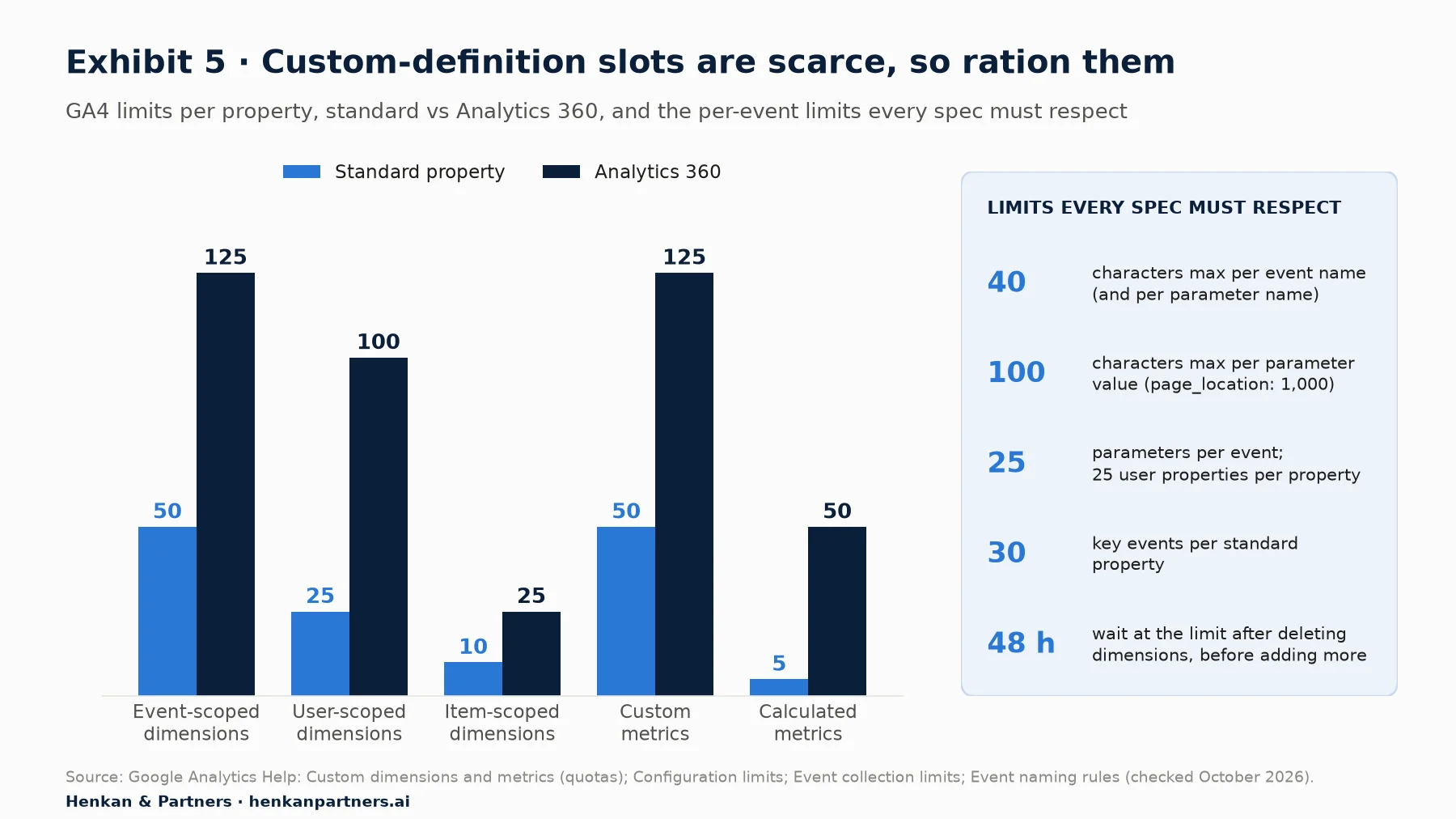
What this shows. A standard property has ten item-scoped and 25 user-scoped dimension slots, which is fewer than most teams expect. Every new parameter someone wants to report on competes for those slots, so the plan's parameter tab is where they are rationed. Once the limit is reached, Google says you must wait 48 hours after deleting dimensions before adding new ones.
For marketers. A standard property can have up to 30 key events. Before marking a new one, check the Key events tab of the plan: if three teams each mark their own version of "lead", channel reports and Google Ads imports will disagree. Key events replaced "conversions" as GA4's term in 2024, so that the word conversion means the same thing in Analytics and Google Ads. GA4 for marketers explains why GA4 numbers still differ from ad platforms.
Section 6 · Change log
A change log turns "the numbers moved" from a mystery into a lookup
When a metric jumps, the first question is always "did something change in the tracking?". Without a change log, answering it takes days. GA4 and Tag Manager both keep partial records. The plan's change log adds what neither records: why.
| Record | Where | What it tells you | Limit |
|---|---|---|---|
| Property change history | GA4 Admin > Property change history | Who created, modified or deleted settings (custom dimensions, key events, data streams) and when | Last 2 years; needs the Editor role |
| Container versions | Tag Manager > Versions | Every published configuration of tags, triggers and variables, with author | Says what changed, rarely why |
| Annotations | GA4 Reports, right-click on a line chart > Add annotation | A dated note on report line charts that everyone sees | 1,000 per property; title 60 and description 150 characters; Analyst role or above |
| Tracking plan change log | Your plan | Reason, ticket, expected impact on reports, link to the container version | Only as good as the discipline to fill it |
What one change log entry should contain
Date, container version, plan row IDs, author, type (add, change, remove), reason with ticket link, and expected impact. The last column is the one people skip and the one analysts need. "Renamed `newsletter_signup` to `sign_up` with `method = newsletter`: sign-ups will appear in the standard report from 14 October; the old event stops on the same date, so trend charts need both names for the transition" saves hours of confusion later.
Versioning in Tag Manager
Tag Manager's workspaces let several people prepare changes in parallel; a standard container can have up to three concurrent workspaces, the default one plus two more (Tag Manager 360 allows unlimited). When a new version is created, every other workspace is flagged as out of date and must be updated. Use one workspace per tracking request, name it after the plan row ID, and you get a clean link between the plan and the container. For the wider set-up of tag management, see the essential guide to tag management.
Section 7 · Rituals
Tracking belongs in the sprint, not in a separate queue
Tracking requested after launch is always late, and a separate analytics backlog is always last. Attach tracking to the rituals teams already run: each adds a question, not a meeting.
| Ritual | Tracking question | Who | Output |
|---|---|---|---|
| Discovery or kick-off | What will we need to know after launch to decide whether this worked? | PM, designer, analyst | Measurement questions on the epic |
| Backlog refinement | Which events and parameters answer those questions? Are any already in the plan? | Requester, analyst, developer | Rows at Spec agreed; acceptance criteria |
| Definition of ready / done | Ready: spec agreed. Done: QA passed, plan updated, change logged | Whole team | Tracking cannot be "done later" |
| Sprint review | Show the new events arriving in DebugView next to the feature demo | Developer, requester | Visible proof the data exists |
| Monthly tracking review | Did volumes match expectations? What broke? What is waiting? | Analytics lead, one rep per role | Fixes and priorities |
| Quarterly audit | Which events and custom dimensions has nobody used? What do we retire? | Analytics lead, requesters | Retirement list; freed slots |
For product managers. Put a "Tracking" section in your ticket template with three fields: measurement question, plan row IDs, acceptance criteria. If the field is empty at refinement, the ticket is not ready. GA4 for product managers lists the questions worth asking.
For developers. Treat the plan row as part of the ticket's contract. If the spec is unclear or breaks the convention, push back at refinement, not during the build.
A launch also needs its own measurement plan, with a baseline and guardrails decided before release; how to measure a product launch in GA4 covers that readout.
Section 8 · Tracking debt
Tracking debt compounds quietly, so retire events as deliberately as you add them
Tracking debt is the gap between what your plan says and what your property actually collects, plus everything collected that no longer answers a question. Symptoms: events nobody can explain, two events for one action, custom dimensions mostly (not set), and no free slots for the next request.
A simple quarterly scoring
For each event and custom definition, answer four yes/no questions: does it have an owner, is it in the plan, has someone used it in a report, exploration or audience in the last quarter, and does its volume match expectations? Score one point for each "no". Two or more puts it on the retirement list; four retires it unless someone claims it. This is a Henkan & Partners rule of thumb, not a Google standard.
How to retire safely
- Check dependencies. Look for audiences, explorations, custom reports, key events and Looker Studio dashboards that use the event or dimension.
- Announce it. Post the retirement list with a date. Anyone who needs an item has two weeks to claim it and become its owner.
- Remove the tag first. Stop collection in a Tag Manager version, logged in the change log, with an annotation on the date.
- Archive the custom definition. In Admin > Custom definitions, archive the dimension or metric. Google warns that archiving cannot be undone and affects audiences, explorations, segments and reports that use it.
- Move the row to Retired. Keep the reason and date, so a future analyst can explain the break in the trend.
For a full property health check beyond tracking debt, use our GA4 audit checklist for e-commerce.
Section 9 · AI and MCP
AI assistants can draft specs and check dataLayers, but a human must own every publish
Data teams already use AI heavily. In dbt Labs' 2025 survey of 459 practitioners, 80% said they use AI in their daily workflow, 70% for analytics development and 50% for documentation. A tracking plan suits AI because it is structured text with explicit rules, and is risky because a confident tracking mistake produces wrong numbers nobody notices for months.
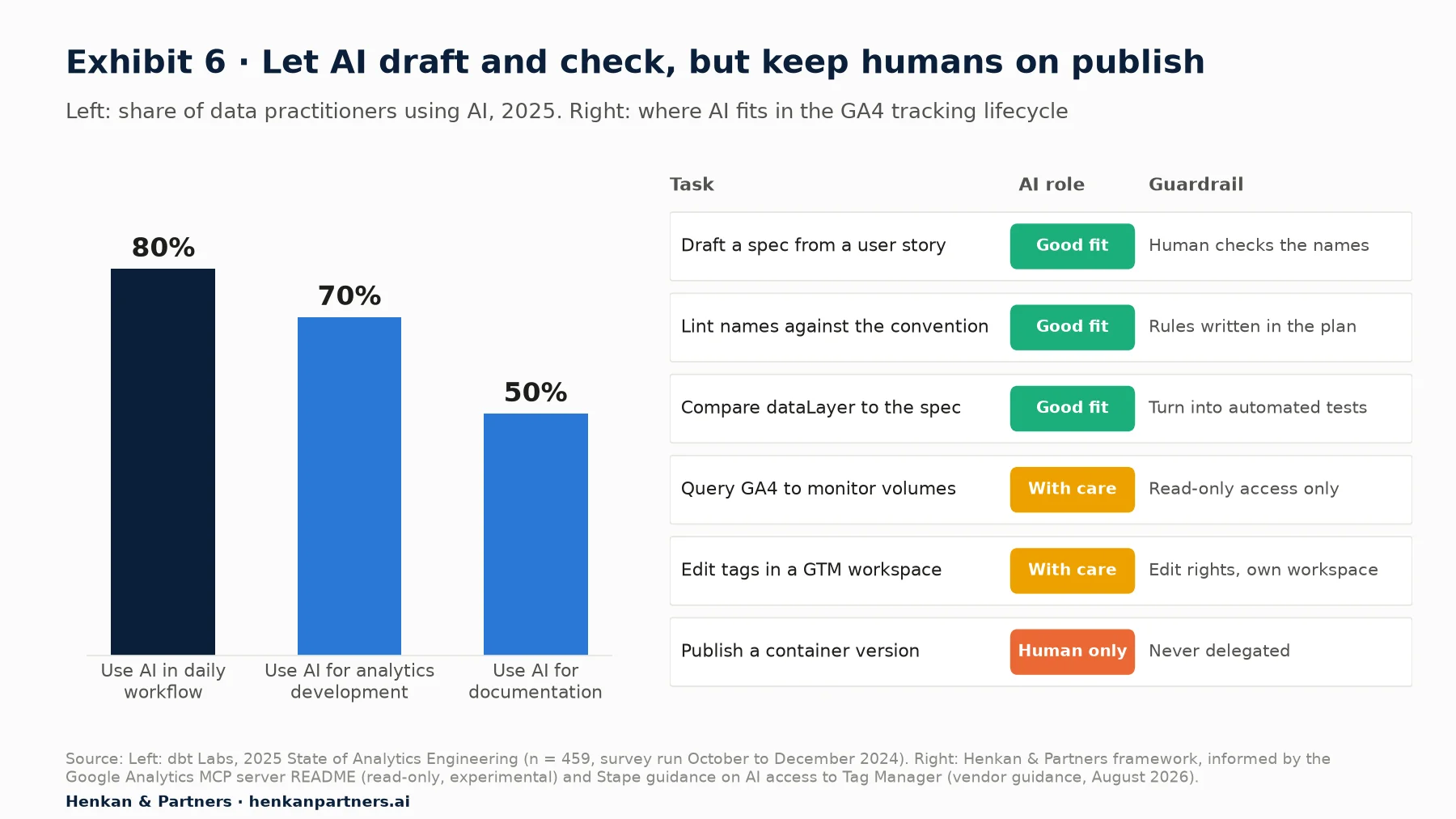
What this shows. The tasks where AI helps most are the ones with written rules and a human reviewer: drafting, linting, comparing. The closer a task gets to changing what production collects, the tighter the guardrails need to be, until publishing, which stays with a person.
Where AI helps
- Drafting specs. Give an assistant the user story, the naming convention and the existing plan, and ask for proposed rows.
- Linting. Check new rows against the convention: case, length (40 characters), reserved names, duplicate meanings, parameters missing from the dictionary.
- Comparing the dataLayer with the plan. Ask for mismatches between captured pushes and the plan, or better, ask it to write Playwright or Cypress tests that assert each push, so the check runs on every release (see debugging and QA for GA4).
- Monitoring through MCP. The Model Context Protocol (MCP) lets an assistant call tools directly. Google publishes a Google Analytics MCP server that uses the Admin and Data APIs with a read-only scope; its README labels it experimental. It can list custom dimensions and run reports, enough to compare the plan with the property.
- Writing the change log. Summarising a container version diff is a task AI does well, provided someone checks it.
The risks, and the guardrails
- Invented names. A model may propose an event that looks recommended but is not. Every name is checked against Google's recommended events reference and the plan.
- Personal data. Never paste real user data into a prompt, and make "no PII in parameters" a lint rule the assistant applies.
- Self-validation. If the same model writes the tag and confirms it works, it is checking its own work. Stape's guidance on AI access to Tag Manager puts it well: two independent sources agreeing is a check, one source asked twice is an echo. Verify in Tag Assistant and DebugView.
- Write access. Third-party MCP servers for Tag Manager, such as Stape's, can read and modify tags, triggers, variables and workspaces. Stape recommends giving the AI account Edit rights only, a dedicated workspace per task, and never Publish. We agree: publishing is instant and global, so it stays with the accountable human.
For the broader picture of AI agents in optimisation work, see AI agents in experimentation.
Disclosure: Henkan & Partners implements GA4 for clients and builds AI and MCP tooling for analytics and experimentation.
Section 10 · Worked example
One request, four roles, ten working days: a worked example
Illustrative example. An online retailer adds a "click and collect" option at checkout. Here is how the request travels through the plan.
| Day | Stage | What happens | Who |
|---|---|---|---|
| 1 | Question | PM writes: "Does offering click and collect raise checkout completion, and which stores does it favour, so we decide whether to extend it to all stores?" | PM (A/R), analyst consulted |
| 2 | Spec | Analyst finds `add_shipping_info` already in the plan, with the recommended `shipping_tier` parameter. No new event: the spec sets `shipping_tier = click_and_collect` and adds a custom `store_id` parameter, on both `add_shipping_info` and `purchase`. Designer flags the store-picker error, covered by reusing `form_error` | Analyst (R), PM (A), designer consulted |
| 3 | Spec | Marketer asks for a click-and-collect key event. Analyst declines: a custom dimension on `shipping_tier` answers the question without using a key event slot | Marketer, analyst |
| 4–7 | Build | Developer adds the parameters to existing dataLayer pushes in workspace T-031 | Developer (A/R) |
| 8 | QA | Developer checks Tag Assistant and DebugView; PM checks acceptance criteria ("`shipping_tier` present on 100% of `add_shipping_info` and `purchase` events in test orders") | Developer, PM; analytics lead signs off |
| 9 | Publish | Analytics lead publishes the version, registers `shipping_tier` and `store_id` as event-scoped dimensions, writes the change log and an annotation | Analytics lead (A) |
| 10+ | Monitor | Weekly check that click-and-collect share matches the order system | Analyst |
Two decisions in this example save the most: reusing existing events instead of creating new ones, and declining a key event that a parameter could answer.
Section 11 · What to do next
Five steps to a working tracking plan in one quarter
1. Inventory what you collect
Export the event list from GA4 (Admin > Data display > Events) and the custom definitions, and pull the tags from Tag Manager. Put them in the Events and Parameters tabs, even if half the rows say "owner unknown".
2. Write the convention and name an owner
One page: naming rules, the parameter dictionary, the status workflow, the RACI. Name the analytics lead who is accountable for the property and give them Publish rights.
3. Route every new request through the plan
From this sprint on, no tracking ticket is ready without plan rows and acceptance criteria. Point each team to its brief: How product managers should ask for GA4 tracking, how designers should annotate tracking in Figma, from tracking request to dataLayer spec and UTM conventions and key events for marketers.
4. Add the rituals and the change log
Tracking in refinement and the definition of done, a DebugView check in the sprint review, a monthly review and a change log entry for every publish. Download the GA4 Tracking Request Kit for the templates.
5. Run the first quarterly retirement
Score every event and custom definition, retire what nobody claims, and use the freed slots for the next quarter's questions. If you want an outside view of your plan or help setting up the process across teams, talk to us.
FAQ
Frequently asked questions about the GA4 tracking plan
Frequently asked questions
What is a GA4 tracking plan?
A GA4 tracking plan is a shared document listing every event and parameter sent to Google Analytics 4, with the business question each answers, when it fires, which custom dimensions and key events depend on it, its owner and its status.
Who should own the GA4 tracking plan?
One analytics lead should be accountable for the plan and the GA4 property, with Publish rights in Tag Manager. Product managers, designers and marketers own their own requests and acceptance criteria, and developers own the build.
What columns should a GA4 tracking plan have?
At minimum: ID, business question, event name, trigger, parameters with type and example values, custom-definition scope, key event or audience use, platform, consent category, acceptance criteria, owner, status, version and ticket link. Separate tabs hold the parameter dictionary, key events and audiences, the change log and retired items.
Should I use recommended events or custom events in GA4?
Use automatically collected, enhanced measurement and recommended events first. Google advises creating custom events only when no other event works, because custom events do not appear in most standard reports.
How many custom dimensions can a GA4 property have?
A standard GA4 property can have 50 event-scoped, 25 user-scoped and 10 item-scoped custom dimensions, plus 50 custom metrics and 5 calculated metrics. Analytics 360 raises these to 125, 100, 25, 125 and 50. If you hit the limit, you must wait 48 hours after deleting dimensions before adding new ones.
How do I track changes made to GA4 and Google Tag Manager?
GA4 keeps a property change history for the last two years (Admin > Property change history, Editor role needed), Tag Manager keeps every published container version, and GA4 annotations let you add dated notes to report line charts. A change log tab in the tracking plan adds the reason and expected impact that neither tool records.
How often should a tracking plan be reviewed?
Update it with every tracking change, review event volumes weekly or monthly, and run a quarterly audit to retire events and custom definitions that nobody has used.
Can AI write a GA4 tracking plan?
AI assistants can draft spec rows from user stories, lint names against your convention, compare dataLayer pushes with the plan and write automated tests. They should not publish changes. Check every proposed name, never paste personal data into prompts, and verify in Tag Assistant and DebugView.
Key terms
- Tracking plan
- The shared list of events, parameters, owners and statuses for a GA4 property. It matters because it is the only place where every role can see what is collected and why.
- Recommended event
- An event with a name and parameters predefined by Google. Using them keeps your data compatible with standard reports and future features.
- Custom dimension
- A parameter or user property registered in GA4 Admin so it appears in reports. Slots are limited per property, so each one must earn its place.
- Key event
- An event marked as important to the business; the term replaced "conversion" in GA4 in 2024. Limited to 30 in a standard property, they drive attribution and Google Ads imports.
- dataLayer
- A JavaScript object on the page through which the site passes structured data to Tag Manager. A clean dataLayer separates what happened from how it is sent to tools.
- Google Tag Manager workspace
- An isolated draft of container changes. One workspace per request links the plan row to the exact changes published.
- DebugView
- A GA4 screen showing events from debug-enabled devices in near real time. It is the main place to check new tracking before and after publishing.
- RACI
- A matrix assigning who is Responsible, Accountable, Consulted and Informed for each stage. One accountable owner per stage prevents tracking from falling between teams.
- Tracking debt
- Events and definitions that are undocumented, unowned, broken or unused. Left alone, it erodes trust in reports and fills custom-dimension slots.
- MCP (Model Context Protocol)
- An open protocol that lets AI assistants call tools and data sources directly. It makes AI useful for checking tracking, and risky if write access is not controlled.
Sources
Methodology. This article was researched and checked in October 2026 from official Google documentation (Google Analytics Help, Google for Developers, Tag Manager Help), product documentation from Segment and Amplitude, the Google Analytics MCP server repository, W3Techs usage data and the dbt Labs State of Analytics Engineering surveys (vendor-run surveys of data practitioners). The Stape article is vendor guidance. Exhibits 2, 3, 4, 6 (right panel) and the tables in Sections 3, 7 and 10 are Henkan & Partners frameworks and illustrative examples; Exhibits 1, 5 and 6 (left panel) show sourced data.
- Google Analytics Help (2026). Event collection limits.
- Google Analytics Help (2026). Event naming rules.
- Google Analytics Help (2026). Custom dimensions and metrics.
- Google Analytics Help (2026). Configuration limits.
- Google Analytics Help (2026). About events.
- Google Analytics Help (2026). About key events.
- Search Engine Journal (2024). Google unifies conversion reporting across Ads & Analytics.
- Google Analytics Help (2026). View the history of account/property changes.
- Google Analytics Help (2026). About annotations.
- Google Analytics Help (2026). Monitor events in DebugView.
- Google Analytics Help (2026). Archive custom dimensions and metrics.
- Google Analytics Help (2026). Access and data-restriction management.
- Google Analytics Help (2026). Best practices to avoid sending personally identifiable information.
- Google for Developers (2026). Recommended events reference.
- Tag Manager Help (2026). Workspaces.
- Tag Manager Help (2026). User permissions.
- Google Analytics (2026). Google Analytics MCP Server (Experimental), GitHub.
- Stape (2026). AI in Google Tag Manager: give it access, not control (vendor guidance).
- Stape (2026). Google Tag Manager MCP server, GitHub.
- Twilio Segment (2026). Create a Tracking Plan (Protocols).
- Amplitude (2026). Data planning playbook.
- dbt Labs (2024). 2024 State of Analytics Engineering.
- dbt Labs (2025). 2025 State of Analytics Engineering.
- W3Techs (2026). Usage statistics of traffic analysis tools for websites.