Focus
From Tracking Request to dataLayer Spec: How Developers Should Implement GA4 Events
Alexandre Suon · 2026-10-02
A tracking request from a product manager, designer or marketer is not yet something you can build. This guide shows developers how to turn it into a GA4 dataLayer spec: how to read the request, when to push back, how to design event-driven dataLayer pushes, when to use gtag.js or Google Tag Manager, how to handle single-page apps and the ecommerce schema, and how Consent Mode v2 fits in, with code you can copy.
Executive summary
- Your job is to turn a question into a contract, not to add a tag. A good request names the business question, the user action, the data needed and an owner. The dataLayer spec turns that into event names, keys, types and example values that the site, the tag manager and QA all agree on before anyone writes code.
- Push back early on requests that cannot be built, trusted or used. The common problems are personal data in parameters, values that break GA4's limits (40 characters for an event name, 100 for most parameter values, 25 parameters per event), custom events that duplicate a recommended or enhanced measurement event, and fields nobody will register or read.
- Design the dataLayer around events, and declare it before the container. Google's rules are simple: initialise with `window.dataLayer = window.dataLayer || []`, never overwrite it, keep one per page and use consistent, case-sensitive names. Push facts at the moment they become true, not values scraped from the page.
- Clear the ecommerce object before every ecommerce push. Google Tag Manager merges pushes into one data model, so items from a previous event can leak into the next one. Google's own examples start with `dataLayer.push({ ecommerce: null })`, commented "Clear the previous ecommerce object."
- Prefer Google Tag Manager, and never let two mechanisms send the same event. Google recommends starting with Tag Manager, and W3Techs detects GTM on 45.1% of all websites in October 2026. In single-page apps, either enhanced measurement's browser-history setting or your own code sends `page_view`, never both.
- Set consent defaults before the first measurement command, then let tags decide. Consent Mode v2 uses four consent types for Google's measurement and advertising tags. In GTM, a consent management platform (CMP) template on the Consent Initialization trigger sets the defaults; your dataLayer pushes stay the same whatever the visitor chooses.
Section 1 · The developer's role
A tracking request becomes a contract before it becomes code
A GA4 dataLayer spec is a written agreement between the people who ask for tracking and the developers who build it. For each event it lists the trigger, the event name, every key with its type and an example value, which keys are required, and where the value comes from. The website pushes those facts into the `dataLayer`, and the tag manager maps them to Google Analytics 4 (GA4).
This is step 2 of The ABC of GA4 for Developers. Step 1, the GA4 event data model, limits and gotchas, explains how GA4 stores events, parameters and user properties. This article is about the handover: what you receive from product, design and marketing, what you send back, and what you build. Steps 3 and 4 cover debugging and QA and the BigQuery export and Measurement Protocol.
Why does the spec matter so much? Because GA4 data is hard to repair after the fact. A wrong event name, a missing currency or a duplicated purchase sits in your reports for good, and the standard interface does not let you reprocess history. How GA4 works explains the processing pipeline in detail. For a developer, the practical consequence is simple: an hour spent on the spec saves days of explaining broken numbers later.
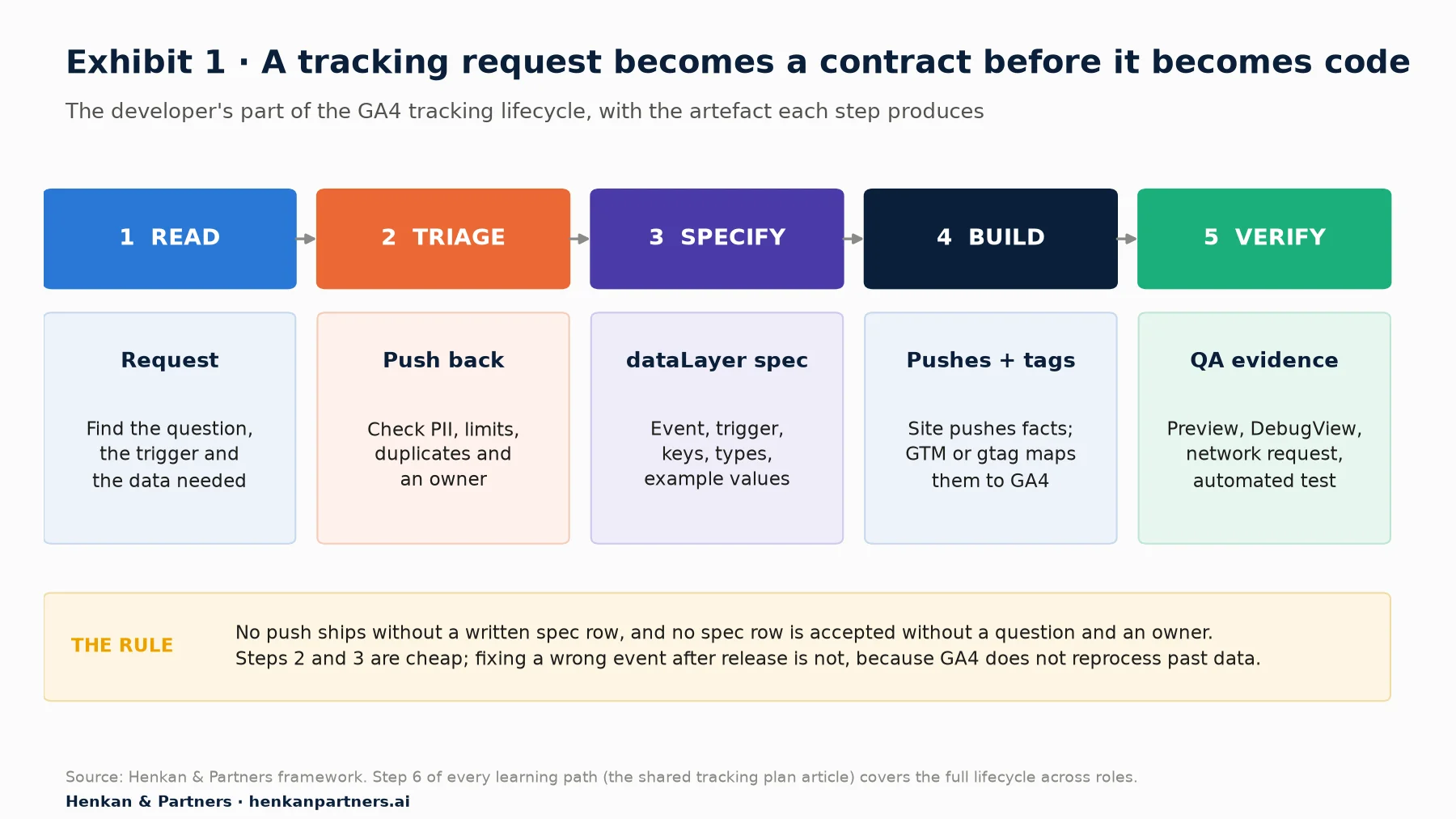
What this shows. Two of the five steps happen before any code is written. Reading and triaging the request is where most bad tracking is stopped cheaply. The spec is the artefact everyone signs off, and the QA step checks the build against it rather than against someone's memory of a meeting.
The dataLayer is the right interface because almost every site you will touch already runs Google's tools. W3Techs detects Google Analytics on 47.2% of all websites and Google Tag Manager on 45.1%, which is 99.6% of the sites that use any tag manager it monitors. The tag management guide explains why the data layer is the contract between your website and your tools; this article shows how to write that contract for GA4.
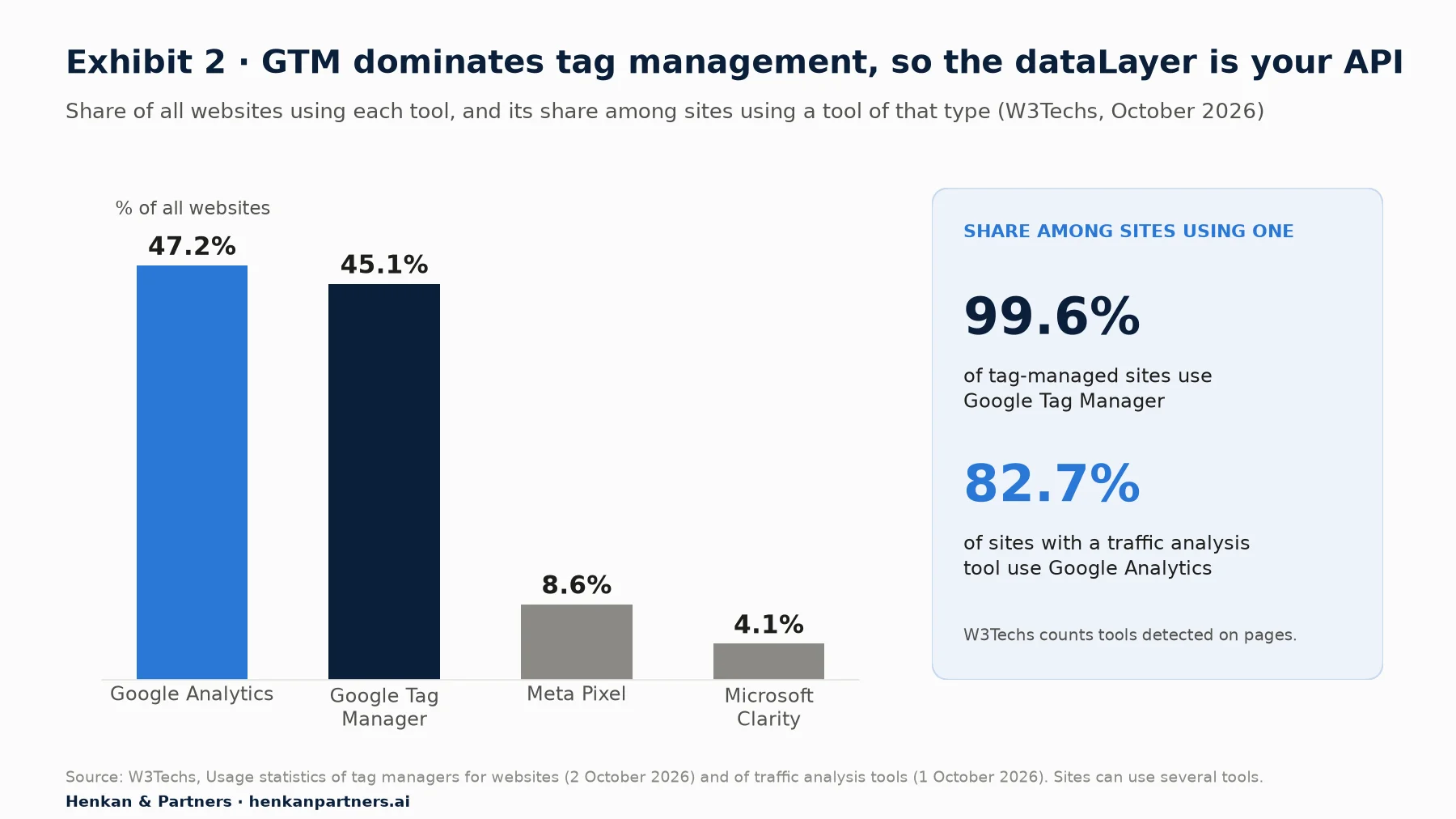
What this shows. Google Tag Manager is close to the default tag manager on the web, and Google Analytics leads traffic analysis by a wide margin. For developers this means the GTM `dataLayer` is, in practice, the API between your front end and your analytics. Designing it well pays off across every tool that reads it, not only GA4.
Section 2 · Reading a request
Read every tracking request for the question, the trigger and the data it needs
Tracking requests arrive in many shapes: a Jira ticket that says "track the new filter", annotations on a Figma frame, a spreadsheet from the paid media team. The sibling articles teach each role to ask well: product managers write user stories with measurement questions, designers annotate forms, filters and errors, and marketers define UTM conventions and key events. Whatever the format, you are looking for five things.
| What you need | Question to ask the requester | Why it matters for the build |
|---|---|---|
| The business question | "What decision will this data change?" | Tells you whether an existing event already answers it, and how precise it must be. |
| The user action and trigger | "At what exact moment is this true: click, success response, render?" | A click on "Place order" is not a purchase. The trigger defines when you push. |
| The data needed | "Which attributes do you need to slice by, with example values?" | Becomes the parameter list, with types and value formats. |
| The scope | "Is this a fact about the event, the item or the user?" | Decides event parameter, item parameter or user property, and which custom dimension quota it uses. |
| An owner | "Who will register, read and maintain this?" | In our experience, unowned events quickly become tracking debt. |
If the request has a question but no trigger, propose one. If it has a trigger but no question, ask for the question before you build. In our experience the second case is the more common, and it is the one that fills properties with events nobody reads.
Section 3 · Pushing back
Push back on requests that cannot be built, cannot be trusted or will not be used
Saying no, or "yes, differently", is part of the job. It is easier when the reasons are written down and agreed in advance, so the conversation is about the rule, not about you. These are the red flags we check in every request.
| Red flag | Example | What to propose instead |
|---|---|---|
| Personal data in a parameter | `email`, `phone`, a full name, or a search term that may contain them | Google's policy prohibits sending personally identifiable information to Analytics. Send a non-identifying internal ID where your privacy team allows it, or a category (for example `login_method: "email"`). |
| Duplicates an automatic or enhanced measurement event | A custom `outbound_link` event when enhanced measurement already sends `click` with `outbound: true` | Use the existing event, or turn the enhanced measurement option off and own it fully. Never both. |
| Custom name where a recommended event exists | `checkout_started`, `signup_complete` | Use `begin_checkout` and `sign_up`. Google says recommended events unlock prebuilt reporting in GA4. |
| Breaks a collection limit | A 60-character event name; a parameter holding a full product description | Event names stay within 40 characters; most parameter values are cut at 100 characters. Send an ID and join the detail later, for example in BigQuery. |
| High-cardinality custom dimension | A timestamp, session ID or user ID registered as a dimension | Keep it out of custom dimensions. Google warns against custom dimensions based on user IDs because of the number of unique values. |
| Ambiguous trigger | "Track when the form is submitted" | Agree whether it fires on click, on client-side validation success or on server confirmation, and name it accordingly. |
| No owner or question | "Track everything on the new page" | Ask for the three questions the page must answer, then spec those events only. |
Limits deserve their own check because they fail silently: GA4 truncates or drops data rather than throwing an error in the browser. The limits that most often shape a spec are shown below. Your step 1 article covers the full list and what happens when you exceed them.
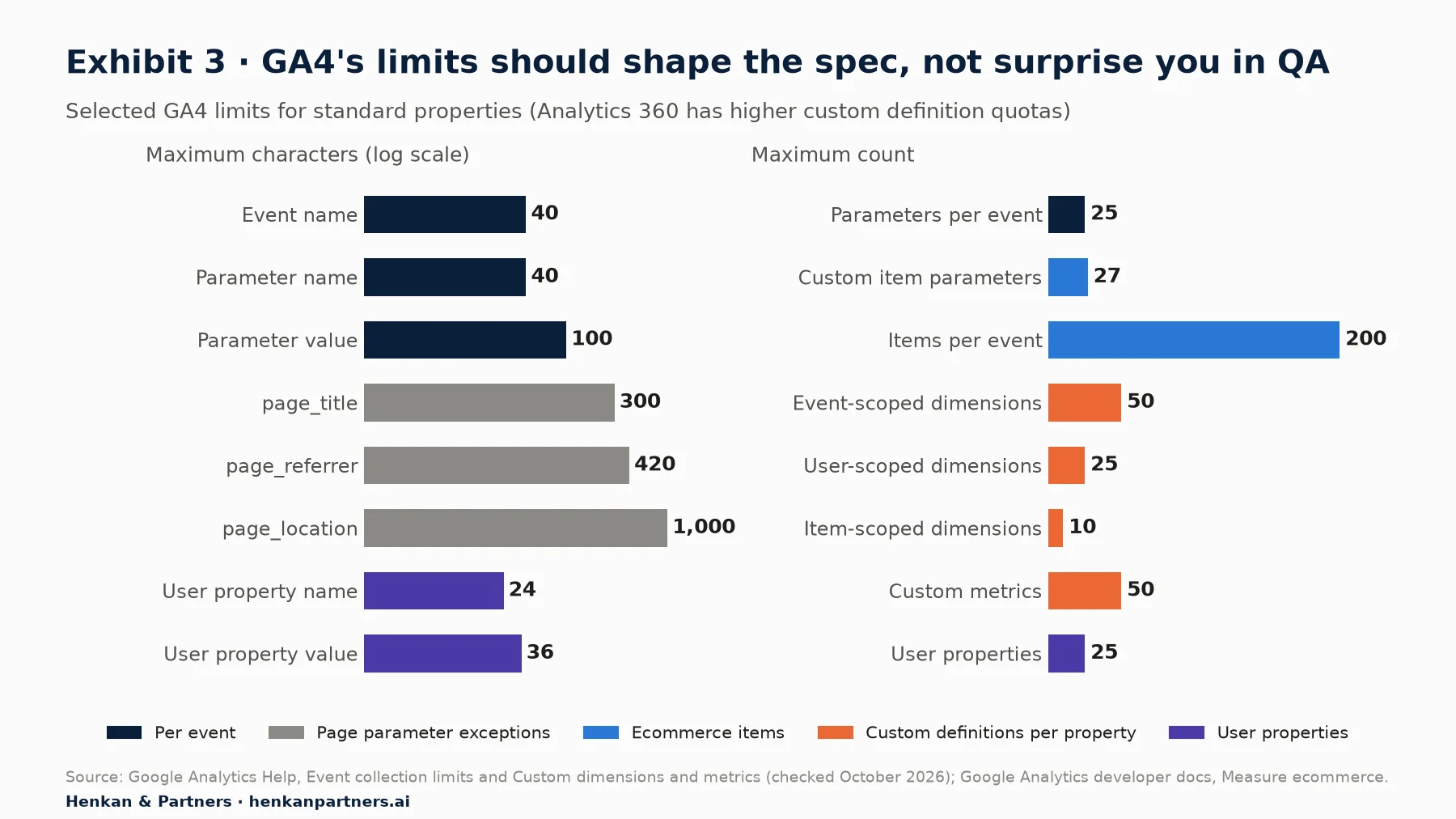
What this shows. The tight numbers are the ones to design around: 40 characters for names, 100 for most values and 25 parameters per event. The property-wide quotas matter too, because each parameter someone wants to report on must be registered as a custom dimension, and a standard property has only 50 event-scoped and 10 item-scoped slots. Analytics 360 raises the custom definition quotas.
Our view. Push back with a proposal, not a refusal. "We can't send the customer's email" ends the conversation; "we'll send `login_method` instead and join customer data in your own warehouse, and here is the question it answers" moves it forward. Keep the red-flag list in your team's tracking plan so requesters can check their own requests before they reach you.
Section 4 · dataLayer design
Design the dataLayer around events, push facts when they become true
Google's documentation for the data layer sets a few hard rules. Declare it before the container snippet with `window.dataLayer = window.dataLayer || [];`. Never overwrite it with `dataLayer = [...]` after Tag Manager has loaded, because that replaces the array Tag Manager is reading. Keep exactly one `dataLayer` object per page. Names are case-sensitive, so `dataLayer` is not `datalayer`, and the same key must have the same name on every page.
Within those rules, the design choice that matters most is event-driven pushes. Each push describes something that just happened, with an `event` key that GTM can use as a trigger, and only the data that belongs to that moment. Compare two ways to track a filter:
// Fragile: GTM scrapes the DOM on click
// Trigger: Click - Just Links, CSS selector .filter-chip
// Variable: {{Click Text}} -> breaks when the label is translated

// Robust: the app pushes a fact when the filter is applied
window.dataLayer.push({
  event: "filter_apply",
  filter_name: "colour",
  filter_value: "navy",
  results_count: 42
});
The second version fires when the results have actually been filtered, not when someone clicks, and it does not depend on the page's text or CSS. It also documents itself: anyone reading the code knows exactly what the analytics team receives.
Push page context first, then interactions
Push the facts that describe the page before the container loads, so every tag can use them from the first event. Typical keys are page type, language, site section and login state. Do not include personal data here either.
<script>
  window.dataLayer = window.dataLayer || [];
  window.dataLayer.push({
    page_type: "product",
    site_language: "fr",
    login_state: "logged_in"
  });
</script>
<!-- Google Tag Manager container snippet goes here -->
Use GA4's names in the dataLayer wherever they exist
You can name dataLayer keys anything, but you should not. If the dataLayer uses GA4's own event and parameter names (snake_case, recommended events such as `sign_up`, `login`, `search` with `search_term`, `add_to_cart`), the GTM mapping becomes trivial and nobody has to remember a translation table. GA4's naming rules also apply: event names must start with a letter, use only letters, numbers and underscores, and must not begin with reserved prefixes such as `ga_`, `google_` or `firebase_`.
Write each event as a spec row
A spec row is the unit of agreement. This is the format we use; the GA4 Tracking Request Kit contains the full template.
| Field | Example: filter_apply | Notes |
|---|---|---|
| Event name | `filter_apply` | Custom event: no recommended event fits. 40 characters maximum. |
| Trigger | Results list re-rendered after a filter is applied | Not the click. Fires once per change, including removals if agreed. |
| Keys and types | `filter_name` string; `filter_value` string; `results_count` integer | Values from the app state, not the DOM. |
| Example values | `colour`, `navy`, `42` | Real examples prevent format arguments in QA. |
| Required | All three | If a key can be empty, say what is sent (omit the key, not an empty string). |
| GA4 mapping | Event parameters; register `filter_name` and `filter_value` as event-scoped custom dimensions | `results_count` as a custom metric only if someone will use it. |
| Question and owner | "Which filters lead to product views?" Owner: category PM | Links the row back to the request. |
| Acceptance test | Apply colour = navy on /women/shoes; one push with the values above | Becomes the QA case and, ideally, an automated test. |
Handle user IDs and personal data in the spec, not in review
If the site has logged-in users, the spec should say how `user_id` is set. Google's guidance is to push the ID to the dataLayer, read it with a Data Layer Variable and pass it to the Google tag as the `user_id` configuration parameter. When the user signs out, set it to `null`, never an empty string, a blank string or the text "null". The ID must not be an email address or anything else that identifies the person directly, and it should not be registered as a custom dimension.
Section 5 · The ecommerce object
Clear the ecommerce object before every ecommerce push, because GTM remembers
Google Tag Manager does not read each push in isolation. It keeps an internal data model and merges every push into it. Google's data layer documentation notes that pushing a variable that already exists overwrites its value, and Google's open-source data layer helper library, which describes this model, explains that plain objects are merged recursively rather than replaced. Values you pushed for one event are still there when the next event fires, unless something replaces them.
For ecommerce this is dangerous. Imagine a product listing pushes `view_item_list` with 24 items, then the visitor clicks a product and the site pushes `select_item` with one item but without, say, `item_list_name` at the event level. Depending on the keys, GA4 can receive stale values from the earlier push. Google's ecommerce examples therefore start each event with a clearing push, commented "Clear the previous ecommerce object."
dataLayer.push({ ecommerce: null });  // Clear the previous ecommerce object.
dataLayer.push({
  event: "view_item",
  ecommerce: {
    currency: "EUR",
    value: 90.00,
    items: [{
      item_id: "SKU_2231",
      item_name: "Leather sneaker",
      item_brand: "Example Brand",
      item_category: "Shoes",
      price: 90.00,
      quantity: 1
    }]
  }
});
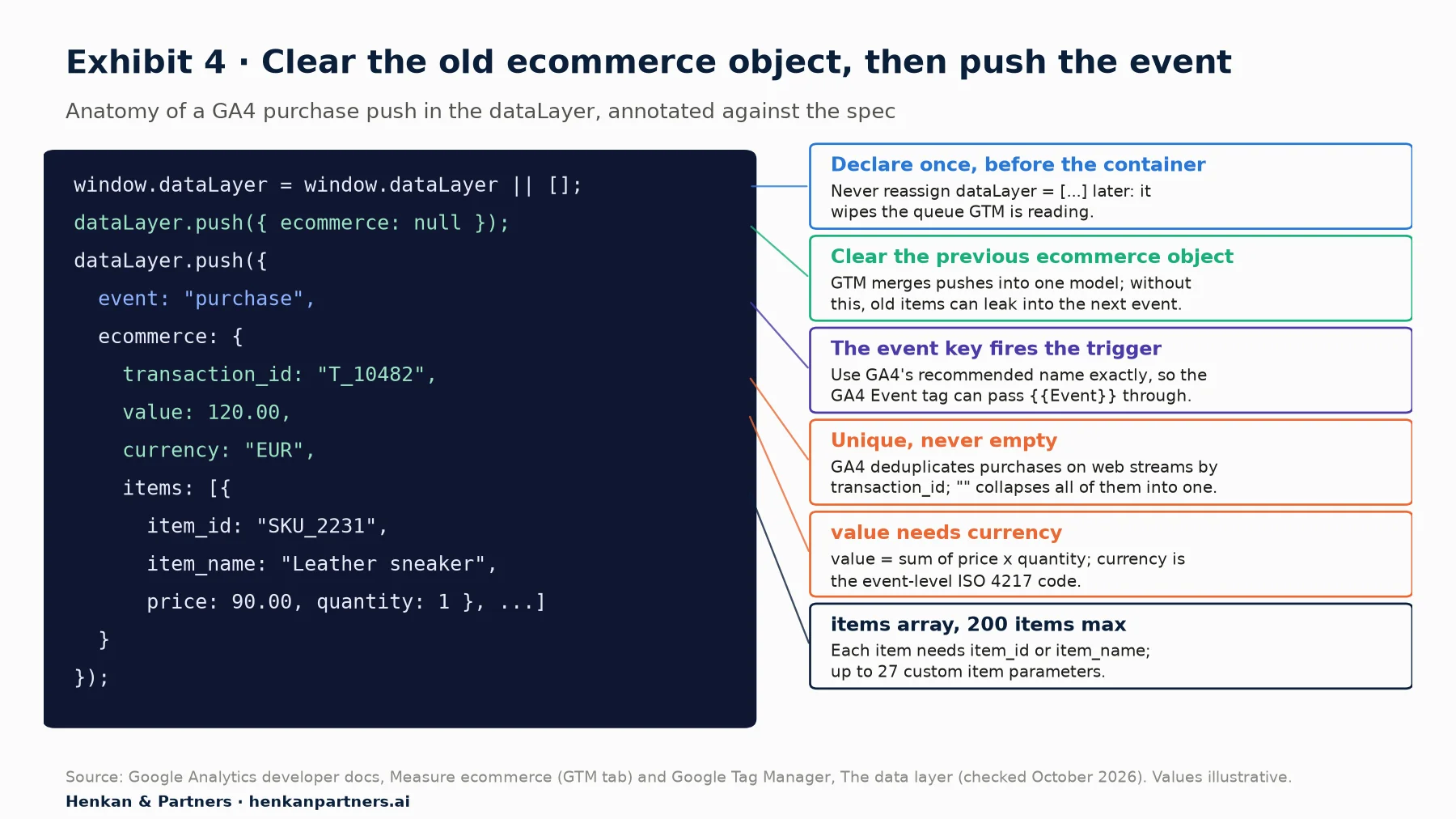
What this shows. Each line of a purchase push maps to a rule you can test. The clearing push and the unique `transaction_id` prevent the two most expensive bugs, contaminated items and lost or duplicated revenue. Writing these rules into the spec means QA can check them line by line.
Two details catch many teams. First, `transaction_id` must be unique per order: GA4 deduplicates purchase events that share a transaction ID, but only for web streams, and if you send an empty string GA4 deduplicates every purchase with `transaction_id=""` into one. Second, `value` should equal the sum of `price` x `quantity` across the items, and `currency` must be set at the event level whenever `value` is sent.
Section 6 · gtag.js or GTM
Use Google Tag Manager unless you have a reason not to, and never run both for the same events
There are two ways to send events from a web page to GA4. With gtag.js (the Google tag in code), your JavaScript calls `gtag('event', ...)` directly. With Google Tag Manager, your code pushes to the `dataLayer` and tags configured in the GTM interface decide what to send. Both use the same `dataLayer` array underneath. Google's developer documentation recommends starting with Tag Manager, and notes that gtag.js can only send data to Google products.
| gtag.js in code | Google Tag Manager | |
|---|---|---|
| Who changes tracking | Developers, through a release | Analysts and developers, through GTM versions |
| Tags supported | Google products only | Google, third-party and custom tags |
| Where the mapping lives | In your code | In GTM tags, triggers and variables |
| Best for | Apps where all tracking is reviewed as code; very small sites | Most websites, multi-vendor stacks, teams with an analyst |
| Main risk | Tracking changes wait for releases | Changes go live without code review unless you enforce one |
The same `add_to_cart` event, both ways:
// gtag.js
gtag('event', 'add_to_cart', {
  currency: 'EUR',
  value: 90.00,
  items: [{ item_id: 'SKU_2231', item_name: 'Leather sneaker', price: 90.00, quantity: 1 }]
});

// Google Tag Manager: the site pushes, GTM sends
dataLayer.push({ ecommerce: null });
dataLayer.push({
  event: 'add_to_cart',
  ecommerce: {
    currency: 'EUR',
    value: 90.00,
    items: [{ item_id: 'SKU_2231', item_name: 'Leather sneaker', price: 90.00, quantity: 1 }]
  }
});
In GTM, Google's ecommerce guide uses a Google Analytics: GA4 Event tag with the event name set to the built-in `{{Event}}` variable, Send Ecommerce data ticked and Data source set to Data Layer, fired by a Custom Event trigger that matches the ecommerce event names. One tag can then handle all ecommerce events, as long as the dataLayer uses GA4's names.
For developers. The worst set-up is a mix: a hard-coded gtag.js snippet from an old project and a GTM container that also loads the Google tag for the same measurement ID. Google's Tag Manager help says there is no need to add gtag.js code if Tag Manager is already in use. Search the codebase and the container for every place the measurement ID appears before you add anything.
For leaders. Choosing GTM moves part of your analytics into a tool outside your code review. Put GTM publishing under the same rules as a release: named versions, a reviewer, and a QA step.
Section 7 · Single-page apps
In single-page apps, decide who sends page_view, then make sure nothing else does
In a single-page app (SPA) built with React, Vue, Angular or similar, the browser loads one HTML page and the router changes the URL with the History API. GA4 has to be told when a new "page" appears. Google's SPA guide says the key is to count a page view for each screen the user sees and to get the referrer right, so journeys can be traced.
You have two clean options. Option A lets the Google tag do it: in GA4, go to Admin > Data collection and modification > Data streams > your web stream > Enhanced measurement, keep Page views on and enable Page changes based on browser history events under its advanced settings. GA4 then sends `page_view` when the router calls `pushState` or `replaceState` (the help page says it also listens for `popState`). Google's SPA guide adds a caveat: if you configure your tags with Google Tag Manager, do not enable this automatic history tracking, because it can double-count page views. Option A is therefore for gtag.js set-ups. Option B gives control to GTM: turn that history setting off, then follow Google's "Measure SPAs with Tag Manager" pattern.
- In Variables > Built-In Variables > Configure, enable the History variables (History New URL Fragment, History Old URL Fragment, History New State, History Old State, History Source).
- Create a History Change trigger (or a Custom Event trigger if your router pushes its own `virtual_page_view` event once the new screen has rendered).
- Create a Google tag with configuration parameters `page_location` = `{{Page URL}}`, `page_title` = `{{Page Title}}` and `update` = `true`, with no trigger. Google explains that `update` merges the new values into the existing configuration and suppresses an immediate duplicate `page_view`.
- Create a GA4 Event tag with event name `page_view`, fired by the History Change trigger, and use Tag Sequencing to fire the Google tag first.
- Check in GTM Preview and GA4 DebugView that each route change produces exactly one `page_view` with the right `page_location`.
With gtag.js only, the equivalent is to set `send_page_view: false` on the config command and send `gtag('event', 'page_view', { page_title: ..., page_location: ... })` from your router. Google's pageview guide warns that sending manual page views without disabling the automatic ones produces duplicates.
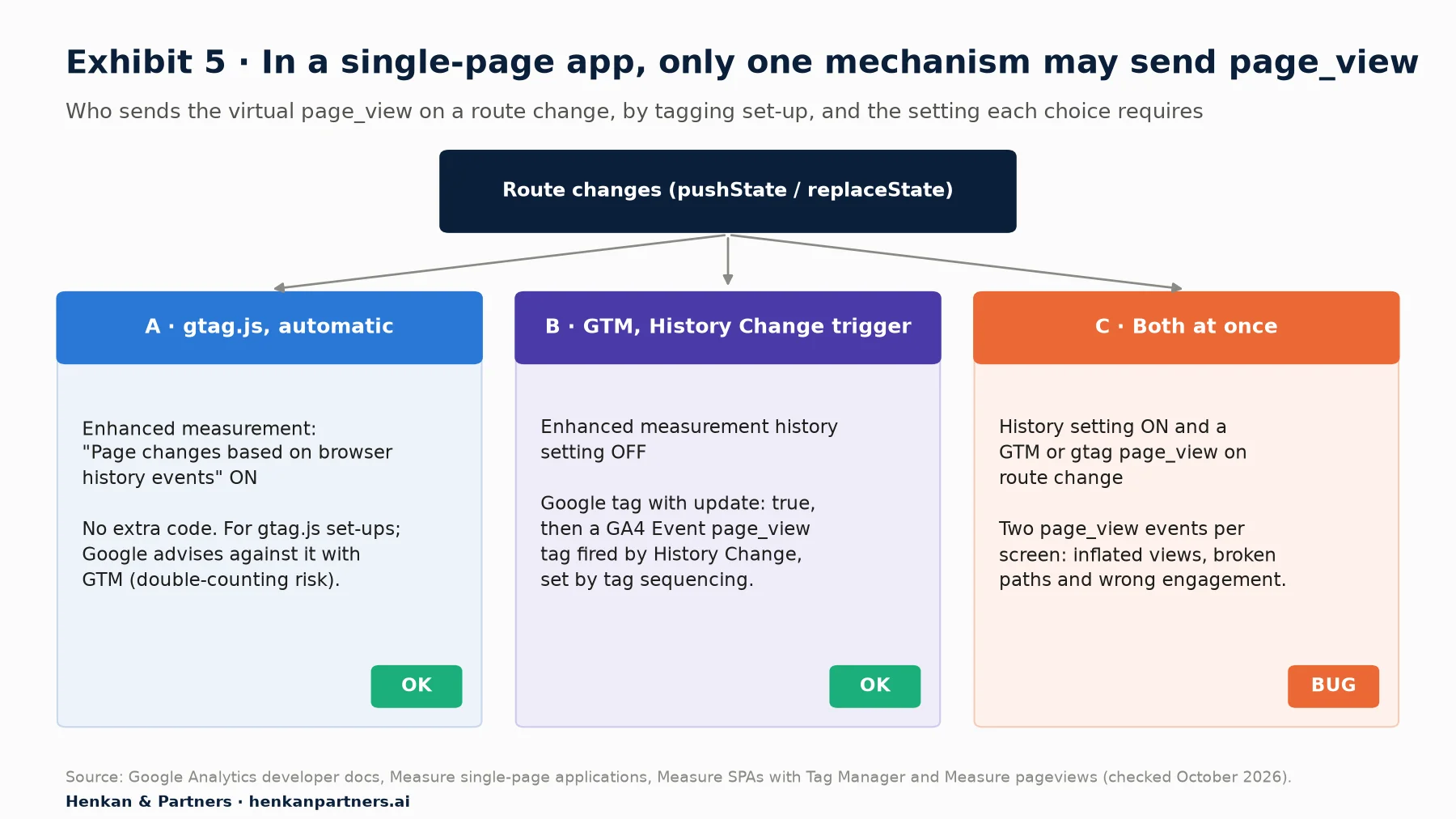
What this shows. Both clean options work; mixing them is the bug. Option A suits gtag.js set-ups and needs no code but relies on the router updating the URL and the document title before GA4 reads them. Option B gives you control of timing and parameters. Whichever you choose, write it in the spec so the next developer does not add the other.
Three SPA details are worth writing into the spec. Update `document.title` before the page view fires, or every screen reports the previous title. Push interaction events only after the new route has rendered, so they carry the new `page_location`. And if you need the previous virtual page as the referrer, Google's GTM guide suggests a custom variable that stores the prior page location, because GA4 keeps the original external referrer from the first page load.
Section 8 · The ecommerce schema
Implement GA4 ecommerce as one schema across the funnel, with the same items everywhere
GA4's ecommerce reports depend on recommended event names and a consistent `items` array. Google lists fourteen events, from viewing a list to a refund. You do not need all of them on day one, but each one you implement should follow the same item structure, so that an item's ID, name, brand and category match from list view to purchase.
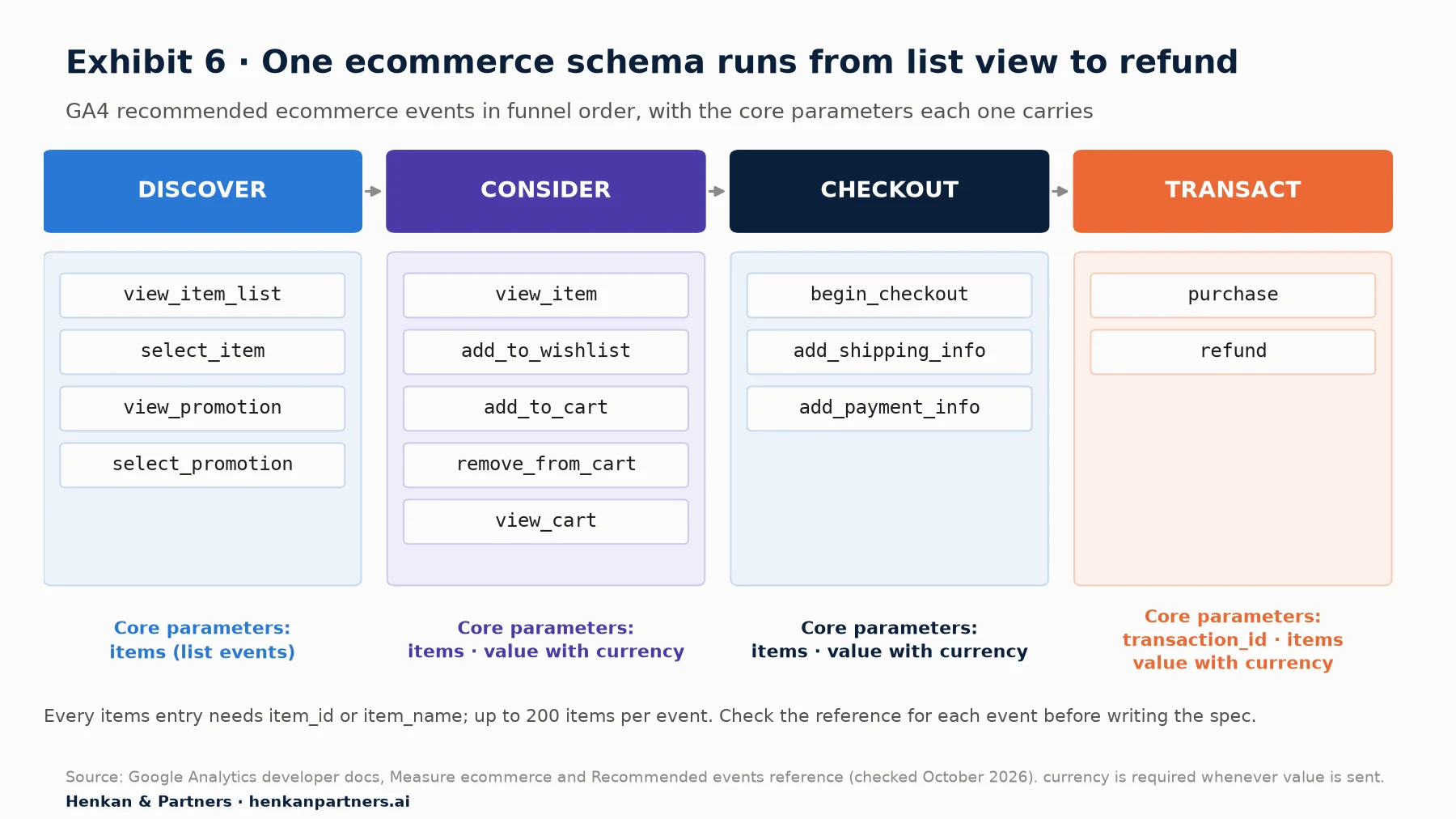
What this shows. The schema is one model applied fourteen times. If the `items` array is built by one shared function in your code, the same product looks the same at every step, and funnel reports such as cart-to-view rates work without reconciliation. Teams that build each push separately usually end up with mismatched IDs between list and purchase.
| Rule | What the docs say | How to build it |
|---|---|---|
| Item identity | Each item needs `item_id` or `item_name` | Send both, from the same product source of truth on every event. |
| Value and currency | Set `currency` at the event level when sending `value`; for purchase, `value` is the sum of price x quantity | Compute value from the items you send, in one helper, so the two cannot drift. |
| Item limits | Up to 200 items per event; up to 27 custom item parameters | Paginate very long lists; register only the custom item parameters you will report on (10 item-scoped dimensions on standard). |
| List context | `item_list_id`, `item_list_name`, `index` are standard item parameters | Pass the list the product was selected from through to `select_item` and, if you need list attribution, beyond. |
| Purchase identity | `transaction_id` is required; duplicates are removed on web streams; never send an empty string | Use the order number from your back end, pushed on the confirmation page only once per order. |
| Refunds | `refund` uses the original `transaction_id` | In our experience, often better sent from the server through the Measurement Protocol; see step 4 of this path. |
For which custom dimensions to add on top of the standard item parameters, see e-commerce custom dimensions. To check an existing implementation end to end, including revenue reconciliation against your order system, use the GA4 e-commerce audit checklist.
A practical note on the confirmation page: a reload, a back-button visit or an emailed link can fire the purchase push again. GA4's web deduplication helps only if the `transaction_id` is the same; it is still better to prevent the repeat, for example by recording on the server or in session storage that the order has been tracked.
Section 9 · Consent Mode v2
Wire Consent Mode v2 in before the first tag fires, and keep your pushes independent of consent
Consent Mode lets Google tags adjust what they store and send according to the visitor's choices. Version 2 uses four consent types for Google's measurement and advertising tags: `ad_storage`, `analytics_storage`, `ad_user_data` and `ad_personalization` (three further storage types exist for functionality, personalisation and security). The legal side, banner design and consent rates are covered in user consent in e-commerce. For developers, three rules matter.
First, set the default before any measurement. Google's consent guide is explicit that the default consent state must be set before any commands that send measurement data. With gtag.js that means the `consent default` call comes before `config`:
gtag('consent', 'default', {
  'ad_storage': 'denied',
  'ad_user_data': 'denied',
  'ad_personalization': 'denied',
  'analytics_storage': 'denied'
});

// Later, when the visitor accepts in the CMP:
gtag('consent', 'update', {
  'ad_user_data': 'granted',
  'ad_personalization': 'granted',
  'ad_storage': 'granted',
  'analytics_storage': 'granted'
});
Second, in GTM, use the Consent Initialization trigger and a CMP template. Every web container includes a Consent Initialization - All Pages trigger, which Google says always fires before all other tags. Your consent management platform's template from the Community Template Gallery should run there to set defaults and listen for updates. Google's consent guide recommends the template APIs (`setDefaultConsentState`, `updateConsentState`) inside GTM rather than raw gtag consent commands, to avoid timing issues with the data layer queue. Then use GTM's consent overview to review each tag's consent settings: Google tags have built-in consent checks; other vendors' tags usually need additional consent checks.
Third, choose basic or advanced mode deliberately. In basic mode, Google tags do not load until the visitor interacts with the banner, and nothing is sent if they refuse. In advanced mode, tags load immediately with consent denied by default and send cookieless pings, which Google says allows more detailed, advertiser-specific modelling than basic mode. Which one you can use is a legal decision for your company, not a developer default.
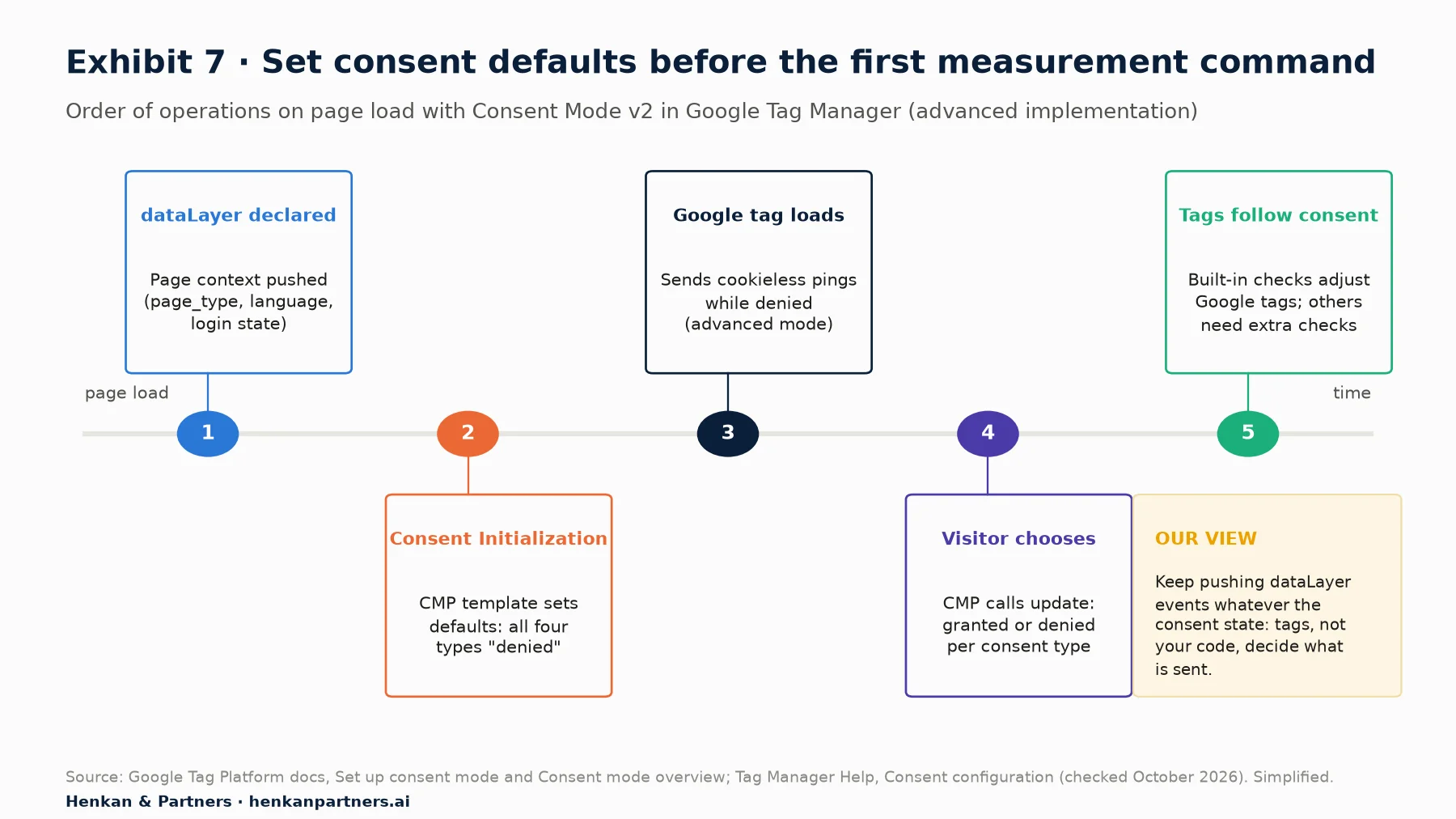
What this shows. Consent is a sequencing problem. The default must exist before the first tag runs, and the update must reach GTM as soon as the visitor decides. Nothing in this sequence requires your application code to change its dataLayer pushes, which keeps the spec simple.
Our view. Do not wrap dataLayer pushes in `if (consentGiven)`. The dataLayer is first-party state on your own page; tags and their consent settings decide what leaves the browser. Gating pushes in application code creates two sources of truth for consent, loses events when consent arrives after the action, and makes QA much harder. The exception is personal data, which should never be in the dataLayer for analytics in the first place.
If your stack also routes GA4 through a server container, consent still applies on the server side; server-side GTM for e-commerce explains why it is not a way around consent.
Section 10 · AI assistants
AI assistants can draft specs and pushes quickly, but every line must be checked against Google's docs
Coding assistants are good at the repetitive parts of this work: turning a spec table into push functions, generating the `items` mapping from your product model, writing unit tests that assert each push matches the spec, or reviewing a pull request for missing `ecommerce: null` calls. Assistants connected to your codebase or tools through the Model Context Protocol (MCP) can also compare the spec sheet with the code and flag drift.
The risks are specific. Models trained on older material often produce Universal Analytics syntax (`ga('send', ...)`, `ecommerce.purchase.actionField`), use event names that GA4 does not recognise, or invent parameters. GA4 terminology also changes: GA4 now calls conversions "key events" (a rename made in 2024, according to industry coverage such as CMSWire), and limits and interface paths move. Treat AI output like code from a new team member: useful, fast, and reviewed against the current documentation before it ships. Never paste customer data or production dataLayer dumps containing personal data into an external assistant.
Section 11 · What to do next
What to do next: five steps for your next tracking request
1. Agree the red-flag list with your requesters
Share the push-back table from Section 3 with product, design and marketing, and add it to your tracking plan. Requests improve when people can check their own work before it reaches you.
2. Adopt one spec row format
Use the spec row from Section 4 for every new event. Download the GA4 Tracking Request Kit for the event spec template, naming convention, QA checklist and tracking-plan sheet layout.
3. Centralise pushes in a small tracking module
Put every push behind a few functions (`trackEvent`, `trackEcommerce`, `buildItems`) so that clearing the ecommerce object, value calculation and naming rules live in one place and can be unit-tested.
4. Check page views and consent once, properly
Confirm that exactly one mechanism sends `page_view` in your SPA and that consent defaults are set before the first tag. Then move on to debugging and QA for GA4 to make these checks part of every release.
5. Put the spec in the shared tracking plan
Your spec rows belong in the team's tracking plan, with owners, versions and a retirement date. The capstone of every path, the GA4 tracking plan, shows how product, design, engineering and marketing run it together. If you want a second pair of eyes on your dataLayer design or a migration, talk to us.
Disclosure: Henkan & Partners provides analytics implementation and tracking QA services.
FAQ
Frequently asked questions about the GA4 dataLayer
Frequently asked questions
What is a dataLayer spec for GA4?
A dataLayer spec is a written agreement that lists, for each event, the trigger, the event name, every key with its type and an example value, which keys are required and how they map to GA4. Developers build the pushes to the spec, and QA tests against it.
What is the dataLayer in Google Tag Manager?
It is a JavaScript array, `window.dataLayer`, that your site pushes objects into. Google Tag Manager reads those pushes, uses the `event` key to fire triggers and exposes the other keys as variables to tags. gtag.js uses the same array underneath.
Why do I need to push ecommerce: null before an ecommerce event?
Because Google Tag Manager merges every push into one data model, so values from a previous ecommerce event can contaminate the next one. Google's ecommerce examples clear the object with `dataLayer.push({ ecommerce: null })` before each ecommerce push.
Should I use gtag.js or Google Tag Manager for GA4?
Google's GA4 developer docs recommend using Tag Manager to get started. gtag.js suits cases where all tracking is reviewed as code and only Google products receive data. Do not use both to send the same events to the same property.
How do I track page views in a single-page app with GA4?
With gtag.js, you can enable the enhanced measurement setting "Page changes based on browser history events" and let the Google tag send page_view. With Google Tag Manager, Google advises turning that setting off and sending page_view yourself with a History Change trigger. You can also send it manually from your router with gtag.js. Never do both, or every screen is counted twice.
What are the GA4 event name and parameter limits?
For standard properties, event names and parameter names can be up to 40 characters, most parameter values up to 100 characters (page_title 300, page_referrer 420, page_location 1,000), and an event can carry up to 25 parameters. Check Google's Event collection limits page, as limits can change.
Should dataLayer pushes depend on cookie consent?
In our view, no. Push the same events whatever the consent state and let Consent Mode and each tag's consent settings decide what is sent. Never put personal data in the dataLayer for analytics.
How do I stop duplicate purchases in GA4?
Send a unique, non-empty transaction_id with every purchase and prevent the confirmation page from pushing twice. GA4 deduplicates purchases with the same transaction ID on web streams, and treats every empty transaction ID as the same one.
Key terms
- dataLayer
- The JavaScript array your site pushes facts into for Google Tag Manager and gtag.js. It matters because it decouples tracking from page layout and becomes the contract with analytics.
- dataLayer spec
- The written definition of each event's trigger, keys, types and example values. It matters because it is what developers build and QA tests against.
- Event-driven push
- A dataLayer push with an `event` key, sent when something happens. It matters because GTM can trigger on it and it carries only the data for that moment.
- Recommended event
- An event name and parameter set defined by Google, such as `sign_up` or `purchase`. It matters because, according to Google, it unlocks GA4's prebuilt reporting.
- Custom dimension
- A registered event, user or item parameter that GA4 makes available in reports. It matters because quotas are limited (50 event-scoped on standard properties) and registration is not retroactive.
- items array
- The list of products attached to an ecommerce event, each with item_id or item_name. It matters because every ecommerce report depends on it being consistent.
- transaction_id
- The unique order identifier on purchase and refund events. It matters because GA4 uses it to deduplicate purchases on web streams.
- Google Tag Manager (GTM)
- Google's tag management system, configured in a web interface. It matters because it maps dataLayer events to GA4 and other vendors without code releases.
- gtag.js
- The Google tag's JavaScript library, called directly from your code. It matters because it is the code-only alternative to GTM, limited to Google products.
- Single-page app (SPA)
- A site that changes screens with the History API instead of loading new pages. It matters because page views must be sent deliberately, once per screen.
- Enhanced measurement
- GA4 options that collect events such as scrolls, outbound clicks and history-based page views automatically. It matters because custom tracking must not duplicate them.
- Consent Mode v2
- Google's framework for adjusting tag behaviour by consent state, with four consent types. It matters because defaults must be set before any measurement command.
- Consent Initialization trigger
- A GTM trigger that fires before all other tags. It matters because consent defaults set there apply to every tag that follows.
- Tag Sequencing
- A GTM setting that fires one tag before or after another. It matters for SPAs, where the Google tag must update page_location before the page_view tag fires.
Sources
All sources checked in October 2026. Google's GA4 and Tag Manager documentation changes often: interface paths, limits and names in this article were verified against the pages below at that date. W3Techs usage figures are third-party measurements of detected technologies, not vendor data. The 2024 date of the "key events" rename comes from industry coverage (CMSWire), as Google's help page does not date it. Exhibits 1, 5 and 7 and Tables 1 and 3 are Henkan & Partners frameworks or templates built on the cited documentation; code values are illustrative.
- Google for Developers (2026). The data layer.
- Google for Developers (2026). Measure ecommerce.
- Google for Developers (2026). Recommended events reference.
- Google for Developers (2026). Measure single-page applications.
- Google for Developers (2026). Measure SPAs with Tag Manager.
- Google for Developers (2026). Measure pageviews.
- Google for Developers (2026). Tagging for Google Analytics.
- Google for Developers (2026). Set up events.
- Google for Developers (2026). Send user IDs.
- Google for Developers (2026). Set up consent mode on websites.
- Google for Developers (2026). Consent mode overview.
- Google Analytics Help (2026). Event collection limits.
- Google Analytics Help (2026). About custom dimensions and metrics.
- Google Analytics Help (2026). Event naming rules.
- Google Analytics Help (2026). Enhanced measurement events.
- Google Analytics Help (2026). Transaction ID deduplication for purchase events.
- Google Analytics Help (2026). Best practices to avoid sending personally identifiable information.
- Google Analytics Help (2026). Conversions vs. key events in Google Analytics.
- Tag Manager Help (2026). Consent configuration.
- Tag Manager Help (2026). Google Tag Manager vs. gtag.js.
- Google (GitHub) (2026). data-layer-helper: abstract data model and merging.
- W3Techs (2026). Usage statistics of tag managers for websites.
- W3Techs (2026). Usage statistics of traffic analysis tools for websites.
- CMSWire (2024). GA4 renames 'Conversions' to 'Key Events': what it means for marketers.