Focus
How Designers Should Ask for GA4 Tracking: Forms, Filters, Errors and Interactions Annotated in Figma
Alexandre Suon · 2026-10-02
Designers decide where a form can fail, which filters exist and what an empty screen says, so they are best placed to say what to measure. This guide shows UX and product designers how to write a GA4 tracking request for forms, filters, errors and interface interactions, annotate it in Figma, and keep personal data out of Google Analytics 4.
Executive summary
- A tracking request is a design deliverable, not an analytics favour. Designers know which interactions carry the risk in a new screen. If they do not ask for tracking, those interactions are usually invisible in GA4 after launch.
- GA4 captures little of the interface on its own. Enhanced measurement adds page views, a 90% scroll event, outbound clicks, site search from URL parameters, video, file downloads, form_start and form_submit. It does not see validation errors, filters, sort, tabs, accordions, modals or empty states.
- Most UX interactions map to a handful of events. Use Google's recommended events first (select_content, search, sign_up, add_shipping_info), then a few custom events such as form_error, apply_filter and view_empty_state. Put the variation in parameters, not in dozens of event names.
- GA4's limits shape the request. Event names are capped at 40 characters, parameter values at 100, and an event carries at most 25 parameters. A standard property has 50 event-scoped custom dimensions in total, and new dimensions only appear in reports 24 to 48 hours after they are created.
- Annotate tracking where developers already look. A custom Tracking category in Figma annotations, numbered pins on the frame and an event spec card per event (question, trigger, parameters, acceptance criteria) turn a design file into a buildable, testable request.
- Send the design's vocabulary, never the user's words. Field names, filter options and error types are safe. Typed values, emails, names and order IDs are not. GA4's data redaction only checks URL-type parameters, so the spec itself must keep personal data out.
Section 1 · Why designers
Designers should write the tracking request, because they know where the design can fail
A GA4 tracking request is a written specification of the user interactions a team wants Google Analytics 4 to record, the question each one answers, the event name and parameters to send, when each event fires and how the result will be checked. For designers, it describes interface behaviour, such as a validation error, a filter or a modal, in a form that developers can build and analysts can test.
Most analytics set-ups are designed from the business backwards: purchases, sign-ups, leads, then the steps of the funnel. That covers the outcome of a journey but not the interface that produced it. When a checkout step loses people, the funnel tells you that it happened. It cannot tell you that the postcode field rejected a valid format on mobile, or that the delivery tab people needed was hidden behind a second tap.
Designers sit closest to those details. You decide which fields are mandatory, what the error message says and what the screen shows when a search returns nothing, and you know which of those decisions were guesses. A good tracking request turns them into measurable questions before launch, when an event costs a line in a ticket rather than a new sprint.
This is step 2 of our path The ABC of GA4 for UX & Product Designers, after GA4 for UX and product designers and before finding UX friction in GA4 and measuring a redesign. For a refresher on events and parameters, read how GA4 actually works; for the wider toolkit, see web analytics for product designers.
The components you want to track are the ones most sites get wrong
Independent usability research shows why the interface deserves its own tracking. Baymard Institute benchmarks large e-commerce sites against its usability guidelines. Its published findings point to the same components again and again: forms, filters and search.
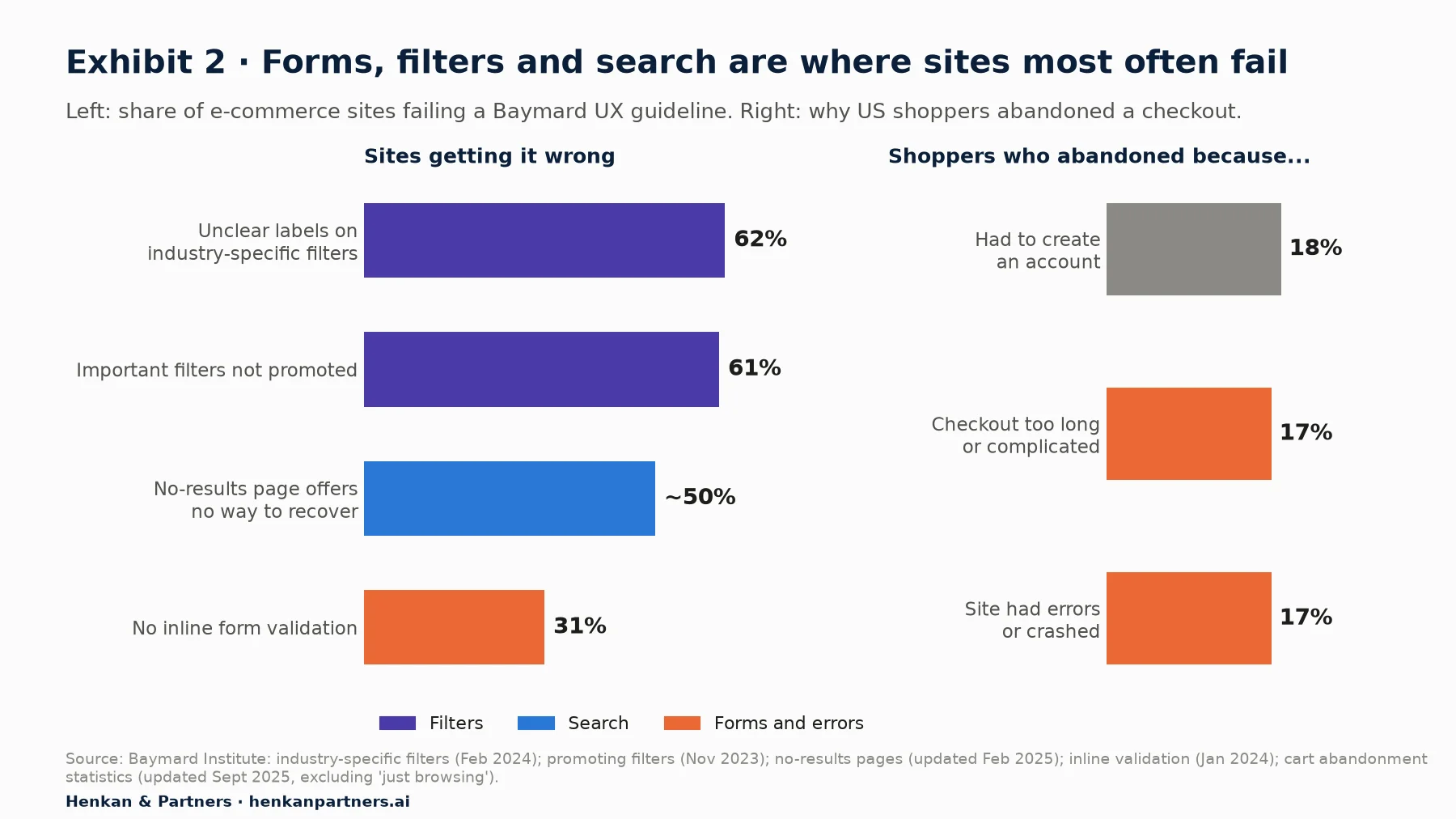
What this shows. Large sites still fail most often on the components designers worry about: almost two in three use unclear labels for industry-specific filters, and nearly one in three gives no inline feedback on form fields. Among shoppers who abandoned a checkout, 17% blamed complexity and 17% blamed errors. None of this is visible in GA4 unless someone asks for the events that reveal it.
Our view. In our experience, the most useful UX events are rarely the ones added during implementation. They are the ones the designer wrote into the spec because they were unsure about a decision. Ask for tracking where your design is a bet.
Section 2 · Questions first
Start from the design question, then ask for the smallest signal that answers it
The most common mistake in UX tracking requests is to start from the component: "track all clicks on the filter panel", "track the carousel". That produces many events and few answers. Start instead from the decision you want to make, then work back to the signal.
A useful test: write the question as you would present the answer. "Postcode errors happen on 14% of mobile checkout sessions, against 3% on desktop" (illustrative figures) is a sentence you can act on. To produce it, you need an event when the postcode error is displayed, a parameter that identifies the field, and the device category GA4 already collects. Nothing else.
| Design question | Signal to request | What GA4 already adds |
|---|---|---|
| Which form fields cause the most errors? | form_error with form_id, field_name, error_type | Device, browser, page, session source |
| Do people find and use the new filters? | apply_filter with filter_name, filter_value, results_count | Page, device, list page path |
| How often does search fail? | search with search_term and results_count | Search term dimension, landing page |
| Does the size guide modal help or interrupt? | show_modal and close_modal with modal_name, close_method | Page, device, next event in the session |
| Are the FAQ accordions on the product page read? | select_content with content_type=accordion, content_id | Page, item viewed in the session |
| How often do users hit an empty wishlist or basket? | view_empty_state with screen_name, empty_reason | Page, logged-in status if collected |
Two rules keep the list short. One event can answer many questions: a single form_error covers every form on the site if form_id and field_name are parameters. And if you cannot name the decision an event would inform, leave it out.
Product managers face the same discipline from the feature side. Our sibling guide on how product managers should ask for GA4 tracking applies it to user stories and the definition of done.
Section 3 · What to track
Enhanced measurement sees pages and forms, so the interface needs a small set of named events
GA4's enhanced measurement is a set of events the Google tag collects without extra code, switched on per web data stream (Admin, Data collection and modification, Data streams, then the Enhanced measurement settings). Three of its events matter for designers, and each has a limit you should know:
- Scroll fires once per page, the first time 90% of the page's height becomes visible. It cannot tell you whether people reached the reviews block halfway down a product page.
- Site search (view_search_results) fires when a results page loads with a search term in a URL query parameter such as q, s, search, query or keyword. Search overlays that do not change the URL are not captured, and the event does not know how many results were shown.
- Form interactions send form_start the first time a user interacts with a form in a session, and form_submit on submission, with form_id, form_name, form_destination and form_submit_text. Google notes that you can only use these parameters in reports once you register them as custom dimensions. They say nothing about errors, and in our experience they often fire on search boxes and newsletter fields too, which inflates "form" counts.
For the full list of what enhanced measurement captures and how to read engagement metrics, see GA4 for UX and product designers. For everything else in the interface, you request named events. Exhibit 1 shows the catalogue we start from.
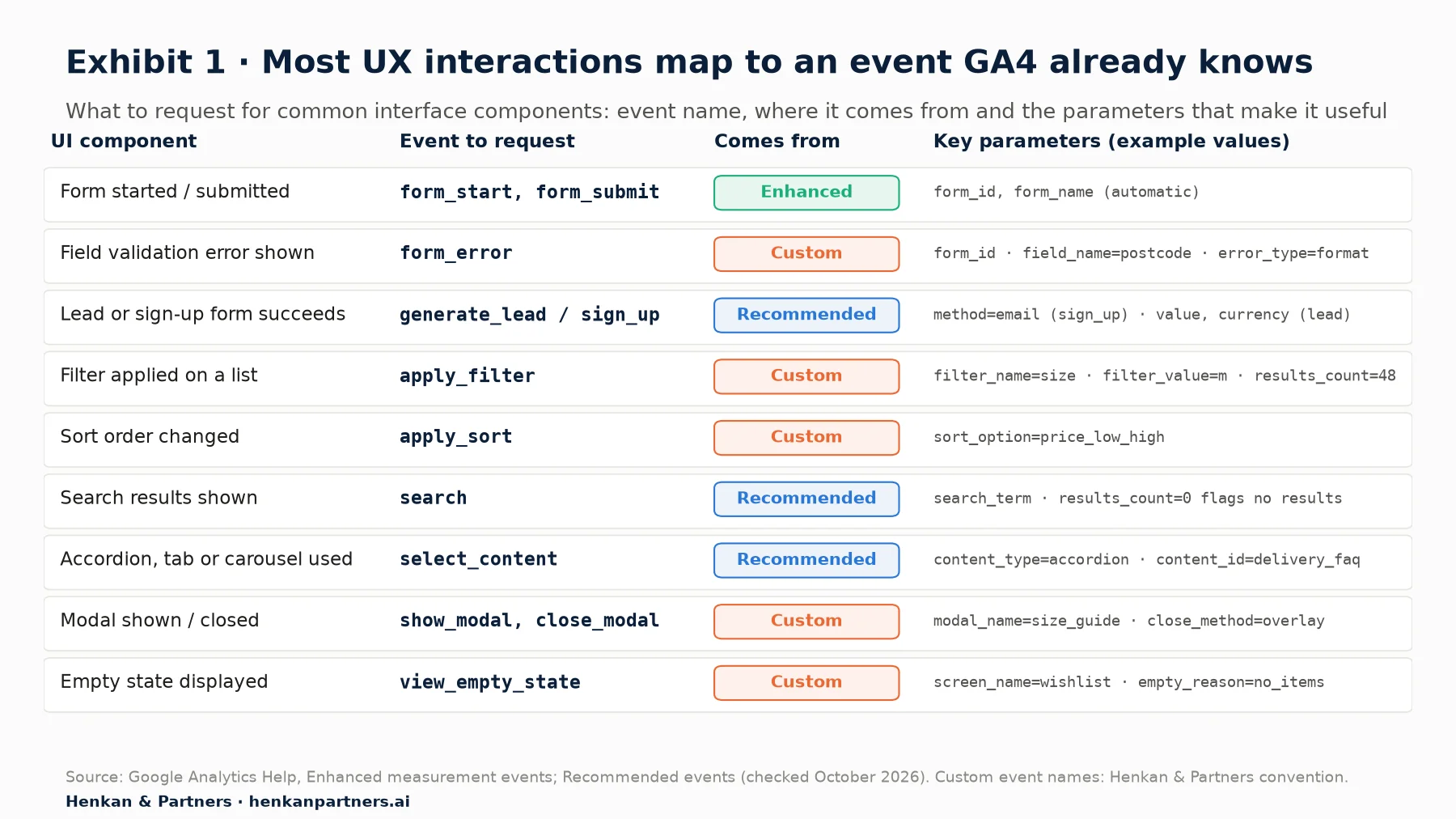
What this shows. Nine common components need only four recommended or automatic event families and five custom events. The variation (which field, which filter, which modal) lives in parameters, which keeps reports readable and saves custom dimension slots.
Use recommended events before inventing custom ones
Google publishes recommended events with predefined names and parameters. For all properties they include generate_lead, login, search, select_content, share and sign_up; for online sales they add steps such as view_item_list, select_item, add_to_cart, begin_checkout and add_shipping_info. Standard reports are built around these names, and any analyst will understand them without a glossary.
select_content is the most useful recommended event for designers. Its two parameters, content_type and content_id, describe almost any disclosure component: an accordion (content_type=accordion, content_id=delivery_faq), a tab (content_type=tab, content_id=reviews), a carousel slide or a "read more" link. Only create a custom event when no recommended event fits the meaning.
Section 4 · Forms and errors
Form errors are the richest UX signal, so specify them field by field
A validation error is the moment your design and the user disagree. Tracking it tells you which fields, which rules and which devices cause friction, and it is the event teams most often forget. GA4 has no recommended event for it, and you cannot simply call it error: Google's event naming rules list error, along with form_start, form_submit, click and scroll, among the names reserved on web streams. We use form_error, which keeps it next to form_start and form_submit in alphabetical reports.
Three parameters are enough
- form_id: a stable identifier for the form, such as checkout_address or account_signup. Use the same values the developer uses in the code, not the visible heading.
- field_name: the field's identifier, such as postcode or card_expiry. Never the label text, which changes with copy and language.
- error_type: a short, fixed list. We use required, format, mismatch (for example, two passwords that do not match) and server (the back end rejected the value). Never the message text, and never the value the user typed.
Two trigger details matter. Inline validation can show the same message several times as people type, so specify "once per field per message display". And if the form also validates on submit, ask for both moments: an error on submit tells you the inline message did not work.
Success is a recommended event, not a click
For the success side, ask for the recommended event that matches the meaning: sign_up for account creation, generate_lead for a contact or quote request, add_shipping_info and add_payment_info for checkout steps. Specify that they fire when the step validates and the user moves on, not when the button is clicked. A click on "Continue" that produces three errors is not a completed step.
Mark the outcome events your business cares about as key events (in GA4, Admin, Data display, Events, then the star next to the event). Google defines a key event as an action that is particularly important to the success of your business; GA4 now keeps the word "conversion" for actions used to measure ad campaigns. Errors should never be key events.
For designers. Add an error-state frame for every field that can fail, and put the field_name and error_type values on it. Developers will use those frames as the test cases.
For leaders. Field-level error tracking is cheap to build when the form is built. Retrofitting it later means touching validation code that nobody wants to reopen.
Section 5 · Filters, sort and search
Filters, sort and search show how people narrow choice, so record the choice and the result
On listing and search pages, users tell you what they want through the interface: the filters they apply, the sort order they choose and the words they type. Baymard's testing found that the first action of most participants arriving on a product list was to look for filters. Yet GA4 records none of it by default.
Filters: one event, three parameters
Ask for apply_filter when a filter value is applied, with filter_name (size, colour, price), filter_value (m, navy, 50_100) and results_count, the number of products shown after the filter is applied. results_count is the parameter designers most often forget, and the one that turns usage data into friction data: a filter that often returns zero results is a design problem, not a user problem.
Watch cardinality, the number of different values a dimension takes. Google defines high-cardinality dimensions as those with more than 500 unique values in one day, and warns that they make reports more likely to hit row limits and group data into an (other) row. A size or colour filter is fine. A free price slider is not: ask for price ranges in buckets (0_50, 50_100) rather than exact values.
Sort: record the option, not the click
apply_sort with sort_option (price_low_high, newest, best_rated) answers whether the default order is the one people want. If more than a fifth of list views end in a re-sort to the same option, the default is probably wrong. That threshold is our rule of thumb, not a benchmark.
Search: make zero results visible
If your search results page puts the term in the URL, enhanced measurement already sends view_search_results with search_term. Ask for the recommended search event with search_term and results_count when results render, especially if search runs in an overlay or as you type. Agree with the analyst which of the two events is the source of truth for search reports, so searches are not counted twice.
results_count=0 is the signal you are after. Baymard reports that nearly half of e-commerce sites fail to give users an effective way to recover from a search with no results. Tracking zero-result searches, and the terms behind them, gives you the synonyms, spellings and missing products to fix, and a before-and-after measure when you redesign the no-results page. Search terms are free text and can contain personal data; Section 10 covers how to handle that.
Section 6 · Interface states
Accordions, tabs, modals and empty states need tracking only where they carry a decision
Disclosure components hide content until the user asks for it. That is exactly why they are design bets: the content you hid may be the content people needed. Track them where the hidden content matters to the journey, not everywhere.
- Accordions and tabs. select_content with content_type (accordion, tab) and content_id. Fire on open only; closing is rarely a decision. Track the delivery and returns accordion on product pages, not every FAQ on the help centre.
- Carousels. select_content when a user clicks a slide or its call to action, with content_id for the slide. Do not fire on automatic rotation, and think twice before tracking arrow clicks: they measure effort, not interest.
- Modals. show_modal when it appears, with modal_name and a trigger parameter (user or automatic), and close_modal with close_method (close_button, overlay, escape_key, cta). Automatic modals, such as newsletter pop-ups, are where this pays off: a high share of overlay closes within seconds is a clear signal of interruption.
- Empty states. view_empty_state with screen_name and empty_reason (no_items, no_results, filters_too_narrow, error). Empty states are designed screens with their own calls to action, but they are invisible in page reports because the URL is the same as the full state.
Seen is not the same as shown
Some questions need an element to be seen, not just loaded: did people see the reassurance message under the payment button? Google Tag Manager's element visibility trigger selects an element by ID or CSS selector and can require a minimum percentage visible (50% by default) and a minimum on-screen duration. Google warns that matching many elements can slow the page, so specify one element ID per question. Our guide to tag management explains triggers.
What not to ask for
Over-tracking has real costs: more developer time, more QA, more custom dimensions and reports full of events nobody reads. In our experience, these requests rarely earn their place:
- Every click on every element. For click maps, use a heatmap or session replay tool instead.
- Hover and focus events, except on a component you are testing.
- Scroll depth in 10% steps on every page. Pick the two or three long pages where depth matters.
- Events that duplicate what GA4 already knows, such as a custom page_view.
Section 7 · Naming and parameters
Names and parameters must follow GA4's rules and limits, or the data never arrives
GA4 is strict about names, and mistakes are not always visible. An event with a name that breaks the rules can be dropped; a parameter value that is too long is cut; a parameter nobody registered never appears in standard reports. Write your request inside these limits.
Naming rules from Google's documentation
- Event names are case sensitive: my_event and My_Event are two different events.
- Use only letters, numbers and underscores, start with a letter and do not use spaces.
- Do not use reserved names. On web streams these include click, error, file_download, form_start, form_submit, page_view, scroll, session_start, user_engagement and view_search_results. Parameter names cannot start with an underscore, firebase_, ga_, google_ or gtag., and cannot be names such as user_id or session_id.
On top of Google's rules, our convention is lowercase snake_case, verb_object for custom events (apply_filter, show_modal, view_empty_state) to match Google's recommended events, an existing family prefix when one exists (form_error next to form_start), and English identifiers even on localised sites, so a French and a German page report under the same value.
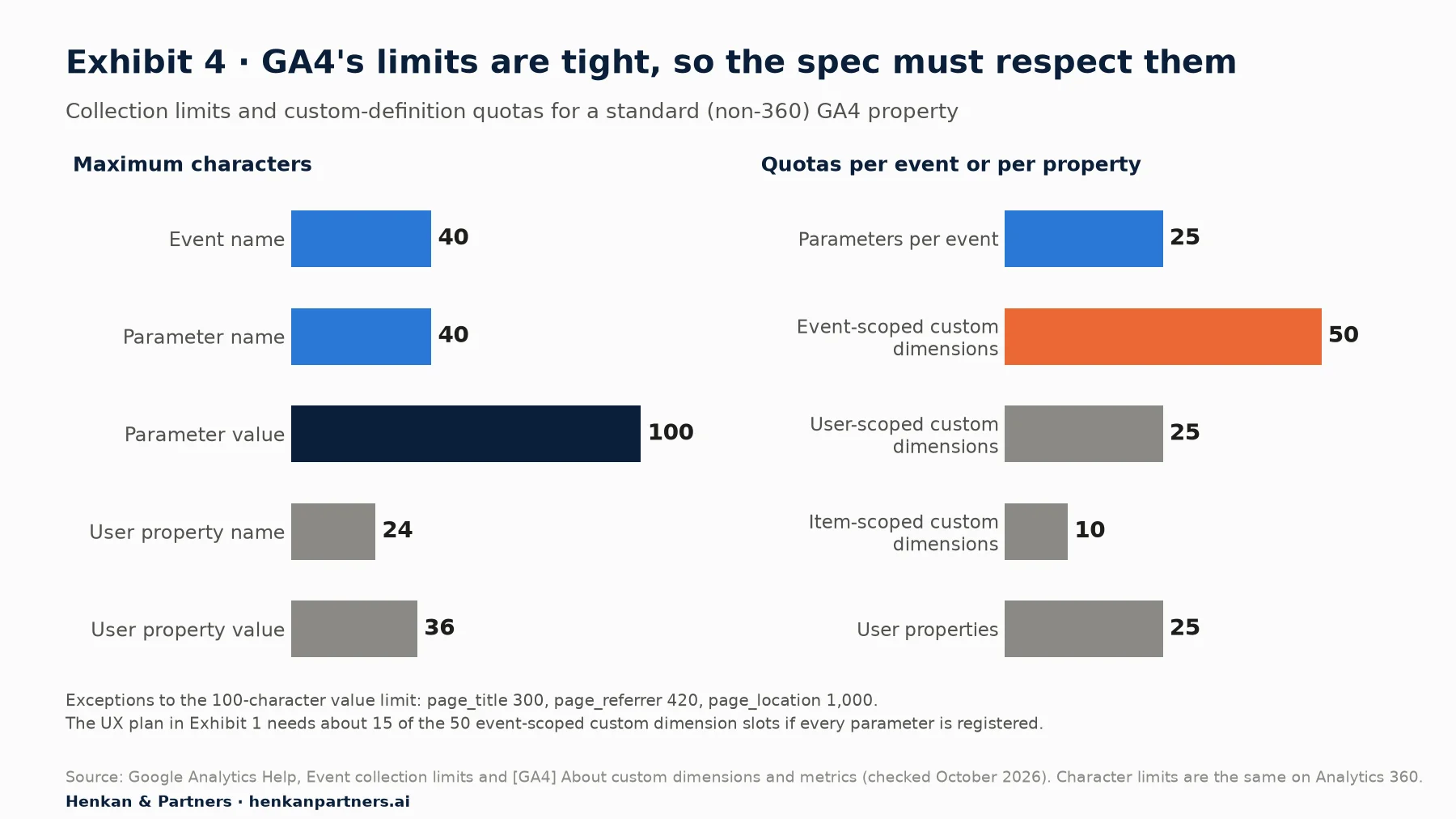
What this shows. The character limits are generous for identifiers but not for text: a 100-character cap is one more reason never to send message copy or typed values. The tighter constraint is the property-wide budget of 50 event-scoped custom dimensions, shared by every team. Analytics 360 raises the quotas (125 event-scoped dimensions) but not the character limits.
Ask for parameters to be registered, before launch
Sending a parameter is not enough to report on it. To use form_id, field_name or filter_name in GA4's reports and explorations, someone with edit access has to register it as a custom dimension: in Admin, under Data display, click Custom definitions, open the Custom dimensions tab, click Create custom dimensions, then enter a dimension name, choose the scope (Event for all the parameters in this guide), and enter the exact event parameter name.
Google says new custom dimensions are available for reporting 24 to 48 hours after the data is sent and the dimension is created, and, in our experience, events sent before the dimension existed do not get its value. A dimension registered three weeks after launch leaves three weeks of events without their detail, so put the list in the request and on the launch checklist. Our guide to which custom dimensions to collect in e-commerce covers the wider budget.
Reuse parameters across events. field_name on form_error and content_id on select_content each cost one slot, however many forms or accordions use them. The nine-component plan in Exhibit 1 needs about 15 of the 50 event-scoped slots if every parameter is registered; a plan with a new parameter per component would need three times as many.
Section 8 · Annotating in Figma
Annotating tracking in Figma puts the request where developers already work
A tracking request in a separate document is easy to lose. Figma's annotations let designers attach notes and component properties to layers, and developers see them update in real time in Dev Mode. According to Figma's help centre, anyone with a Full seat and edit access can add annotations, anyone with a Full or Dev seat and view access can see them, and annotations are available on all paid plans. Press Shift+T or use the Annotation button in the toolbar.
Figma provides four preset annotation categories: Development, Interaction, Accessibility and Content. Editors can add their own through Edit categories…, with a label and a colour, and categories apply to the current file. Create a Tracking category in a colour no other category uses, so developers can filter tracking notes in Dev Mode, and analysts can find them in one pass.
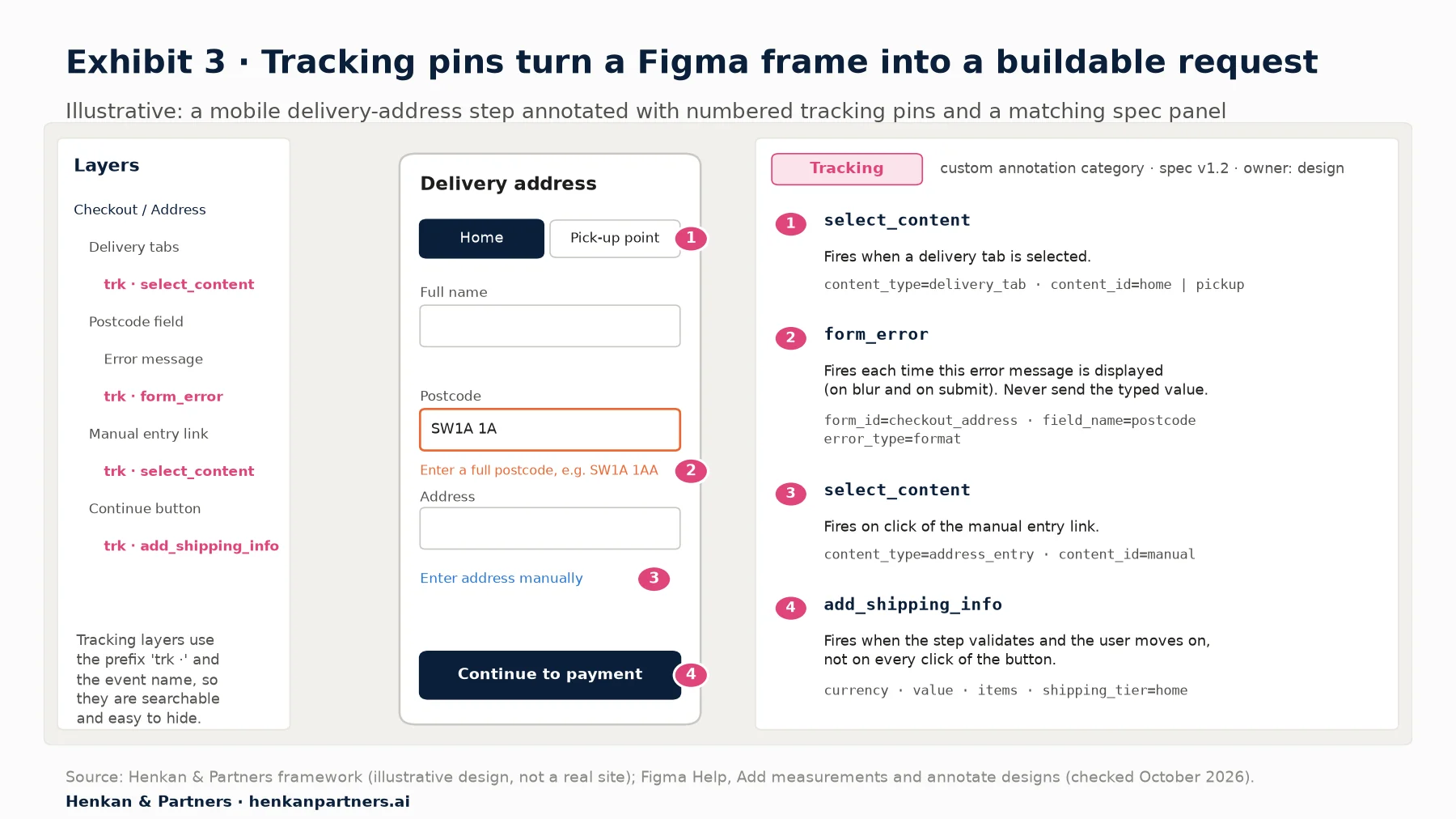
What this shows. Each pin points to one interaction and one event, and the spec panel holds what the developer needs to build it: the trigger in plain words and the parameters with example values. The error pin sits on the error message, not the field, because the event fires when the message appears. The layer prefix makes every tracked element searchable and lets you hide the tracking layer when presenting the design.
Conventions that survive handoff
- One pin, one event. Number pins per frame and repeat the number in the spec. A component that sends two events gets two pins.
- Pin the state, not just the component. Annotate error, empty and loading states on their own frames. That is where most UX events fire.
- Write the trigger in plain words. "Fires when the message becomes visible". Avoid "on click" unless a click is really the moment.
- Give example values. content_id=delivery_faq is clearer than "the accordion ID".
- Make tracking part of "ready for dev". A frame is not ready if its tracking pins are missing.
Where AI assistants help, and where they do not
AI assistants can draft the first version of a tracking request. Figma's MCP server, which connects AI agents and code editors to Figma through the Model Context Protocol, gives them access to design context, variables, components and layout data; Figma says the remote server is available on all seats and plans. An assistant can read a checkout frame, list the fields and states, and propose form_error values and a spec table in minutes.
Treat the draft as a junior analyst's work. Assistants invent parameter names that do not match the code and suggest events for everything. Figma's MCP server guide recommends annotations for conveying design intent, so a Tracking category gives an assistant useful context, but the tracking plan, not the Figma file, should remain the source of truth. Never paste real user data into a prompt. The shared article on the GA4 tracking plan covers AI and MCP across the workflow.
Section 9 · The event spec
An event spec with acceptance criteria is what makes the request buildable and testable
Annotations show where events fire. The event spec says exactly what each one is. It is the document a developer builds from and the analyst tests against, and it should fit on one card per event.
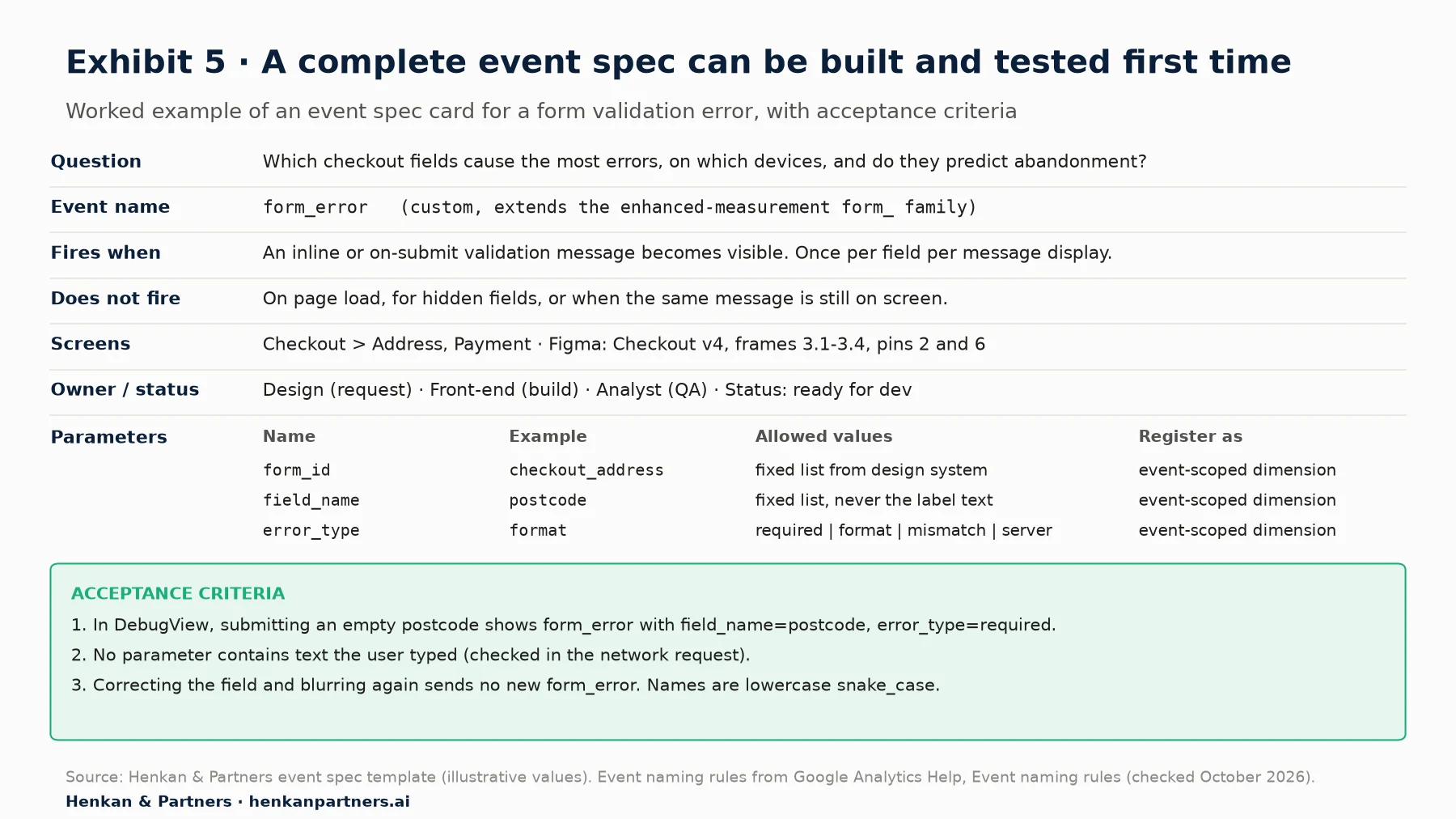
What this shows. The card starts with the question, so anyone can judge later whether the event is still needed. The "does not fire" line prevents the most common bugs, such as errors firing on page load. The acceptance criteria are written as checks the analyst can run in DebugView, which turns "is the tracking done?" into a yes or no.
The fields every spec needs
| Field | What to write | Example |
|---|---|---|
| Question | The decision the event informs | Which fields cause most errors on mobile? |
| Event name | Recommended name if one exists, otherwise custom, within the naming rules | form_error |
| Trigger | The moment it fires, in plain words | Validation message becomes visible |
| Does not fire | Edge cases to exclude | Page load, hidden fields |
| Parameters | Name, example, allowed values, whether to register | field_name = postcode (fixed list) |
| Screens and frames | Where it happens, with Figma links | Checkout v4, frames 3.1–3.4 |
| Owners and status | Who requests, builds, tests; current status | Design, front-end, analyst; ready for dev |
| Acceptance criteria | Checks that prove it works | Visible in DebugView with the right values |
| Privacy check | Confirmation that no personal data is sent | No typed values in any parameter |
How the spec is tested
The analyst or developer checks each event in DebugView, GA4's real-time debugging report (Admin, then DebugView under Data display), with debug mode enabled through Tag Assistant or Tag Manager's preview mode. DebugView shows events from the last 60 seconds and an archive of the last 30 minutes. Google notes that events are not visible in debug mode if users have not given consent under consent mode, so test with consent accepted, and test the refusal path separately.
Most UX events are sent through a data layer push from the site's code, such as dataLayer.push({'event': 'form_error', ...}), which a Tag Manager tag forwards to GA4. Designers only need the names to match the spec exactly, because they are case sensitive. The build side is covered in from tracking request to dataLayer spec.
Section 10 · Privacy
Send the design's vocabulary, never the user's words
Google asks that no data be passed to Google Analytics that Google could use or recognise as personally identifiable information (PII). Its guidance lists email addresses, personal phone numbers and names among the data to avoid, and names URLs, page titles, form fields, search boxes and custom dimensions as the places PII commonly leaks. UX tracking touches all of them, which makes the designer's request the first line of defence.
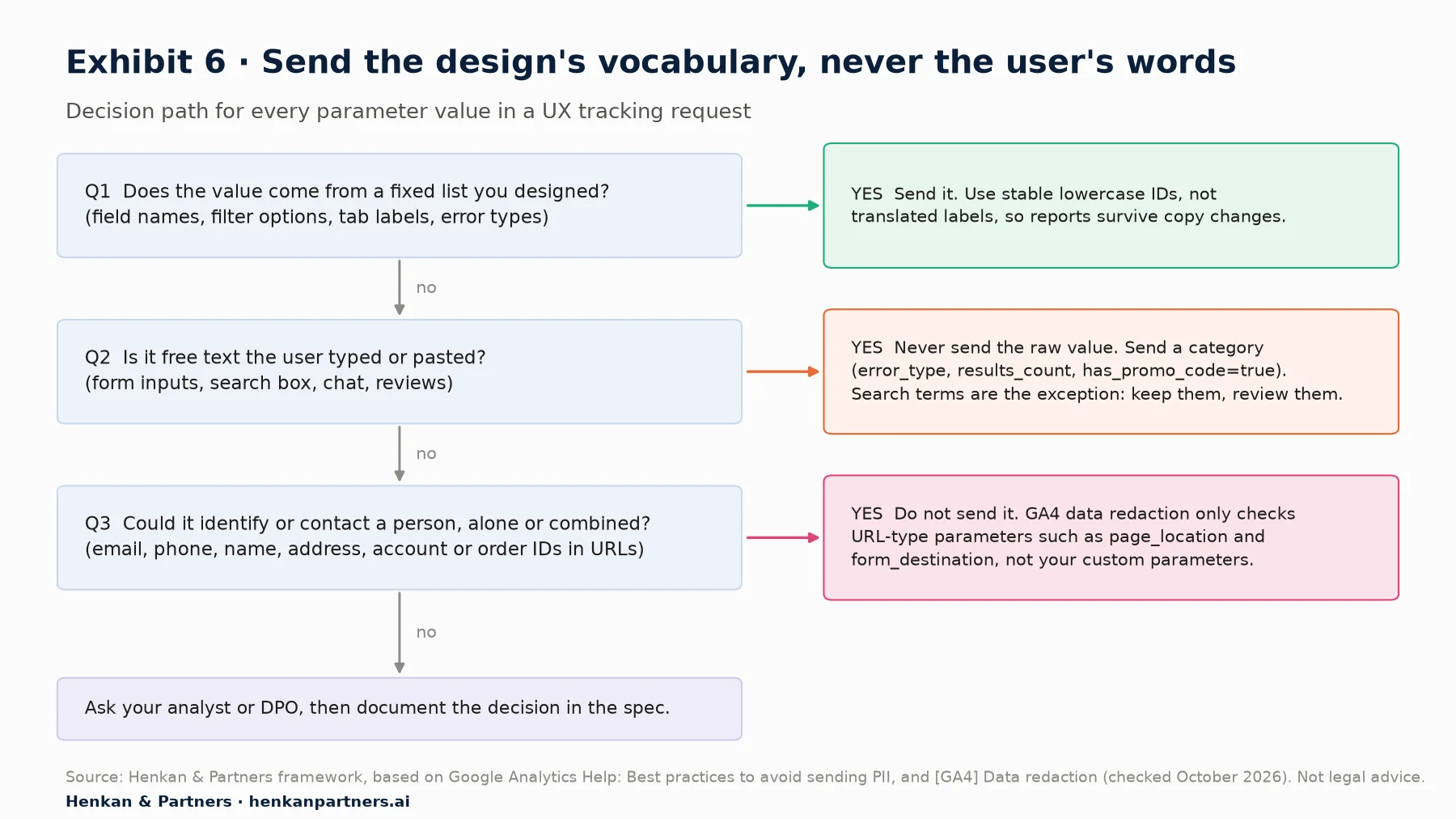
What this shows. The safe values are the ones you designed: identifiers from a fixed list. Anything the user typed is risky by default and should be reduced to a category, such as error_type instead of the rejected value. Search terms are the one free-text field most teams keep, because they are the point of search analytics, so they need a review routine rather than blind trust.
Why data redaction is not a safety net
GA4 has a data redaction setting for web data streams (Admin, Data collection and modification, Data streams, the web stream, then Redact data). It removes text it understands as an email address, and query parameters you list. But Google's documentation says it only evaluates page_location, page_referrer, page_path, link_url, video_url and form_destination, works on a best-effort basis and does not cover the Measurement Protocol. A custom parameter carrying a typed value goes through untouched.
Consent applies to UX events too
Every event in your request is subject to the site's consent set-up. Depending on how consent mode is configured, users who decline analytics cookies send no data (basic consent mode) or only cookieless pings that Google uses for modelling (advanced consent mode), so error and filter counts describe consenting users first. Our guide to user consent in e-commerce explains the options.
For designers. Add a privacy line to every spec card: "No parameter contains text the user typed." It costs nothing and makes the check explicit.
For leaders. PII in analytics is a data protection problem, not a tracking bug. Make the privacy check an acceptance criterion so it is tested, not assumed.
Section 11 · What to do next
What to do next: five steps to your first designer-led tracking request
1. Pick one flow you are redesigning
Start with a flow where the design carries risk and the outcome is clear, such as checkout, sign-up or product listing. Write three to five questions you want answered three weeks after launch.
2. Map each question to the smallest signal
Use Exhibit 1 as the starting catalogue. Prefer recommended events and shared parameters. Cut any event you cannot tie to a question.
3. Annotate the frames and states in Figma
Create a Tracking annotation category, pin each event on the state where it fires and give example values. Include error and empty states. To get the question bank, event spec template, naming convention and QA checklist in one place, download the GA4 Tracking Request Kit.
4. Write the spec cards and review them with a developer and an analyst
Thirty minutes before the sprint is enough. The developer checks feasibility and names, the analyst checks the limits, the custom dimensions to register and the privacy line. Add the events to the shared GA4 tracking plan.
5. Test before launch, then use the data
Run the acceptance criteria in DebugView, register the custom dimensions on launch day, and book the analysis three weeks later using finding UX friction in GA4 and, on mobile, our mobile UX audit method. If you want help setting up the request process or the tracking plan across design, product and engineering, talk to us.
FAQ
Frequently asked questions about GA4 tracking requests for designers
Frequently asked questions
What is a GA4 tracking request?
A GA4 tracking request is a specification of the interactions a team wants Google Analytics 4 to record: the question each event answers, the event name and parameters, when it fires and how it will be tested. For designers it covers interface behaviour such as form errors, filters, modals and empty states.
Does GA4 track form errors automatically?
No. Enhanced measurement sends form_start and form_submit, but it does not record validation errors. Ask developers for a custom event such as form_error with form_id, field_name and error_type, fired when the error message is displayed. You cannot name it error, because that name is reserved.
How do I track filters in GA4?
Ask for a custom event such as apply_filter with filter_name, filter_value and results_count. Keep filter values to a fixed list, and bucket free values such as price ranges, to avoid high-cardinality dimensions that push data into the (other) row.
How do I track searches with no results in GA4?
Ask for the recommended search event with search_term and a results_count parameter fired when results render. A results_count of 0 identifies failed searches. Enhanced measurement's view_search_results captures the term from URL parameters but not the number of results.
Can I add tracking annotations in Figma?
Yes. On paid plans, anyone with a Full seat and edit access can add annotations, and developers with a Full or Dev seat can view them in Dev Mode. Create a custom Tracking category and pin one event per interaction on the frame or state where it fires.
What counts as personal data in GA4 event parameters?
Anything that could identify a person, such as emails, phone numbers, names, addresses and identifiers in URLs. Google asks that no PII be sent to Analytics. Send values from fixed lists you designed, and never the text users type into fields.
How many custom dimensions can I create in GA4?
A standard GA4 property allows 50 event-scoped, 25 user-scoped and 10 item-scoped custom dimensions, plus 50 custom metrics. Analytics 360 allows 125 event-scoped, 100 user-scoped and 25 item-scoped dimensions.
Why don't my new event parameters appear in GA4 reports?
Parameters must be registered as custom dimensions before they appear in reports and explorations, and Google says they become available 24 to 48 hours after the data is sent and the dimension is created. Register them on launch day, not weeks later.
Key terms
- Event
- A single recorded interaction in GA4, such as a page view or a form error. It matters because everything GA4 reports is built from events.
- Event parameter
- A detail attached to an event, such as field_name or filter_value. It matters because parameters carry the design detail, so fewer event names are needed.
- Enhanced measurement
- A set of events the Google tag collects without extra code, including scroll, site search and form interactions. It matters because designers should know what it covers before requesting more.
- Recommended event
- An event name and parameter set defined by Google, such as select_content or sign_up. It matters because reports and analysts recognise them, so they should be used before custom events.
- Custom event
- An event your team names and defines, such as form_error. It matters because it fills gaps no recommended event covers, within GA4's naming rules.
- Reserved names
- Event and parameter names GA4 keeps for its own use, such as error, click and form_submit on web. It matters because a request using them will not work as intended.
- Custom dimension
- A registered parameter that GA4 can show in reports and explorations. It matters because unregistered parameters are not available in standard reports, and quotas are limited.
- Cardinality
- The number of unique values a dimension takes; Google calls more than 500 a day high. It matters because high cardinality pushes data into the (other) row.
- Key event
- An event marked in GA4 as particularly important to the business; GA4 now uses conversion only for ad campaign measurement. It matters because success events, not errors, should be key events.
- Data layer
- A JavaScript object the site uses to pass events and values to Tag Manager. It matters because most UX events are pushed through it, with names that must match the spec.
- DebugView
- A GA4 report that shows events from debug-enabled devices in near real time. It matters because acceptance criteria are tested there before launch.
- Figma annotation
- A note or property attached to a layer in Figma, grouped by category and visible in Dev Mode. It matters because it puts the tracking request where developers already look.
- PII
- Personally identifiable information, such as an email, phone number or name. It matters because Google asks that none be sent to Analytics, and UX events touch forms and search boxes.
- Data redaction
- A GA4 web stream setting that removes emails and chosen query parameters from URL-type parameters. It matters because it does not check custom parameters, so the spec must keep PII out.
Sources
All sources were checked in October 2026. Google and Figma documentation is cited as published on their help and developer sites at that date; both update pages without version numbers, so interface paths and limits may change. Baymard Institute figures come from its usability benchmarks of large e-commerce sites and its survey of US online shoppers; the checkout abandonment reasons exclude respondents who were only browsing. Exhibits 1, 3, 5 and 6 and Tables 1 and 2 are Henkan & Partners frameworks with illustrative values; the re-sort threshold in Section 5 is a Henkan & Partners rule of thumb, not a benchmark. Exhibits 2 and 4 show sourced data.
- Google Analytics Help (n.d.). Enhanced measurement events.
- Google Analytics Help (n.d.). [[GA4] Recommended events](https://support.google.com/analytics/answer/9267735).
- Google for Developers (n.d.). Recommended events reference.
- Google Analytics Help (n.d.). Event naming rules.
- Google Analytics Help (n.d.). Event collection limits.
- Google Analytics Help (n.d.). [[GA4] About custom dimensions and metrics](https://support.google.com/analytics/answer/14240153).
- Google Analytics Help (n.d.). [[GA4] Create event-scoped custom dimensions](https://support.google.com/analytics/answer/14239696).
- Google Analytics Help (n.d.). [[GA4] Cardinality](https://support.google.com/analytics/answer/12226705).
- Google Analytics Help (n.d.). Mark events as key events.
- Google Analytics Help (n.d.). Conversions vs. key events in Google Analytics.
- Google Analytics Help (n.d.). Monitor events in DebugView.
- Google Analytics Help (n.d.). Best practices to avoid sending Personally Identifiable Information (PII).
- Google Analytics Help (n.d.). [[GA4] Data redaction](https://support.google.com/analytics/answer/13544947).
- Tag Manager Help (n.d.). Element visibility trigger.
- Google for Developers (n.d.). The data layer.
- Google for Developers (n.d.). Consent mode overview.
- Figma Help Center (n.d.). Add measurements and annotate designs.
- Figma Help Center (n.d.). Guide to the Figma MCP server.
- Figma (n.d.). Figma MCP server guide.
- Baymard Institute (2024). Usability Testing of Inline Form Validation: 31% Don't Have It, 4% Get It Wrong.
- Baymard Institute (2023). Consider Promoting Important Filters (61% Don't).
- Baymard Institute (2024). Always Explain Industry-Specific Filters (62% Don't).
- Baymard Institute (2025). 5 Proven UX Strategies For "No Results" Pages.
- Baymard Institute (2025). 50 Cart Abandonment Rate Statistics 2026.